Appearance
Appearance settings configure the application's theme, widget style, icon set, and custom styling.
Settings Dialog
Open the appearance settings from the menu bar:
- Settings > Appearance (or press Ctrl + , / Cmd + ,)
Settings are saved to global_settings.json.
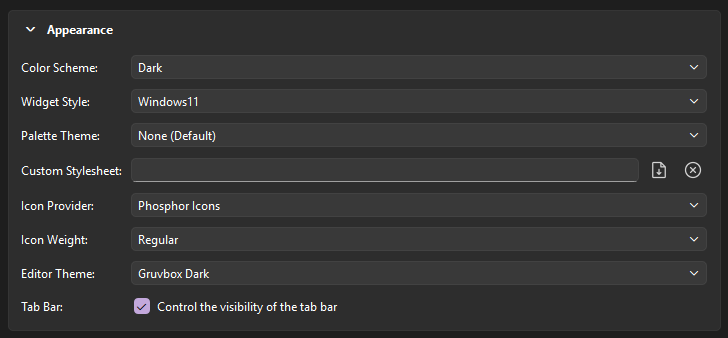
Options
Color Scheme
Sets the OS-level color scheme.
- System Default: Follows the operating system theme.
- Light: Forces light mode for window decorations and menus.
- Dark: Forces dark mode for window decorations and menus.
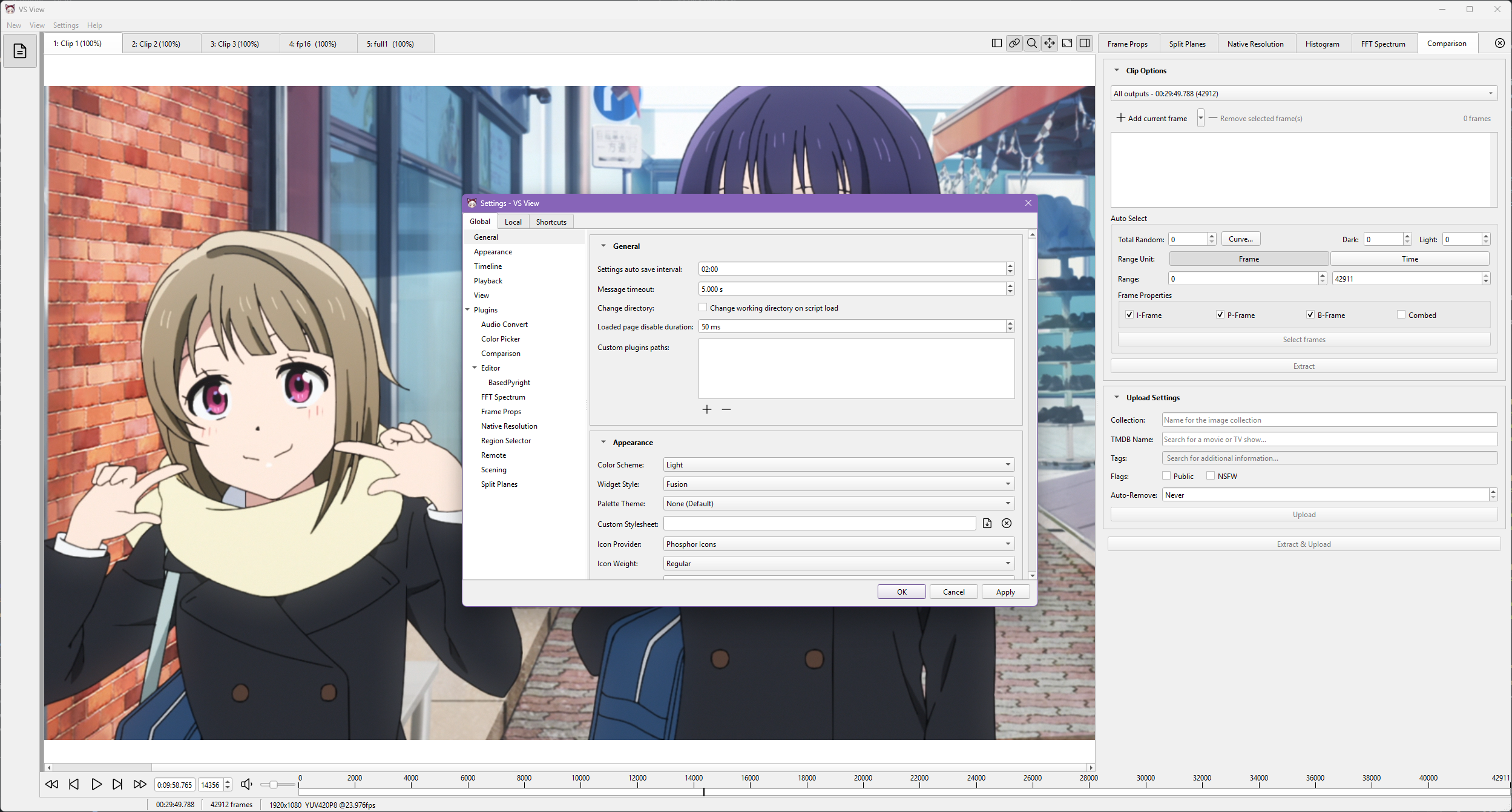
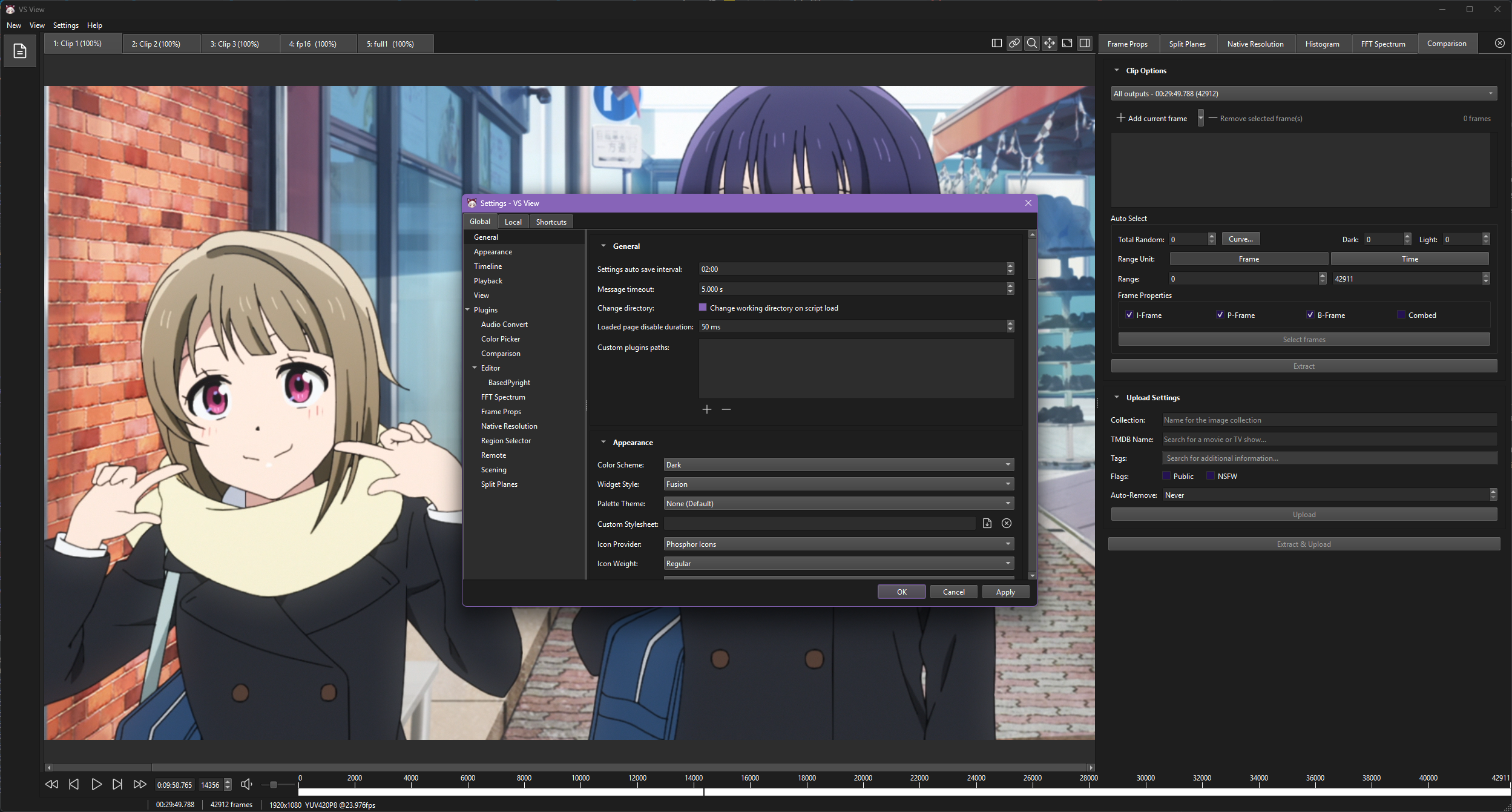
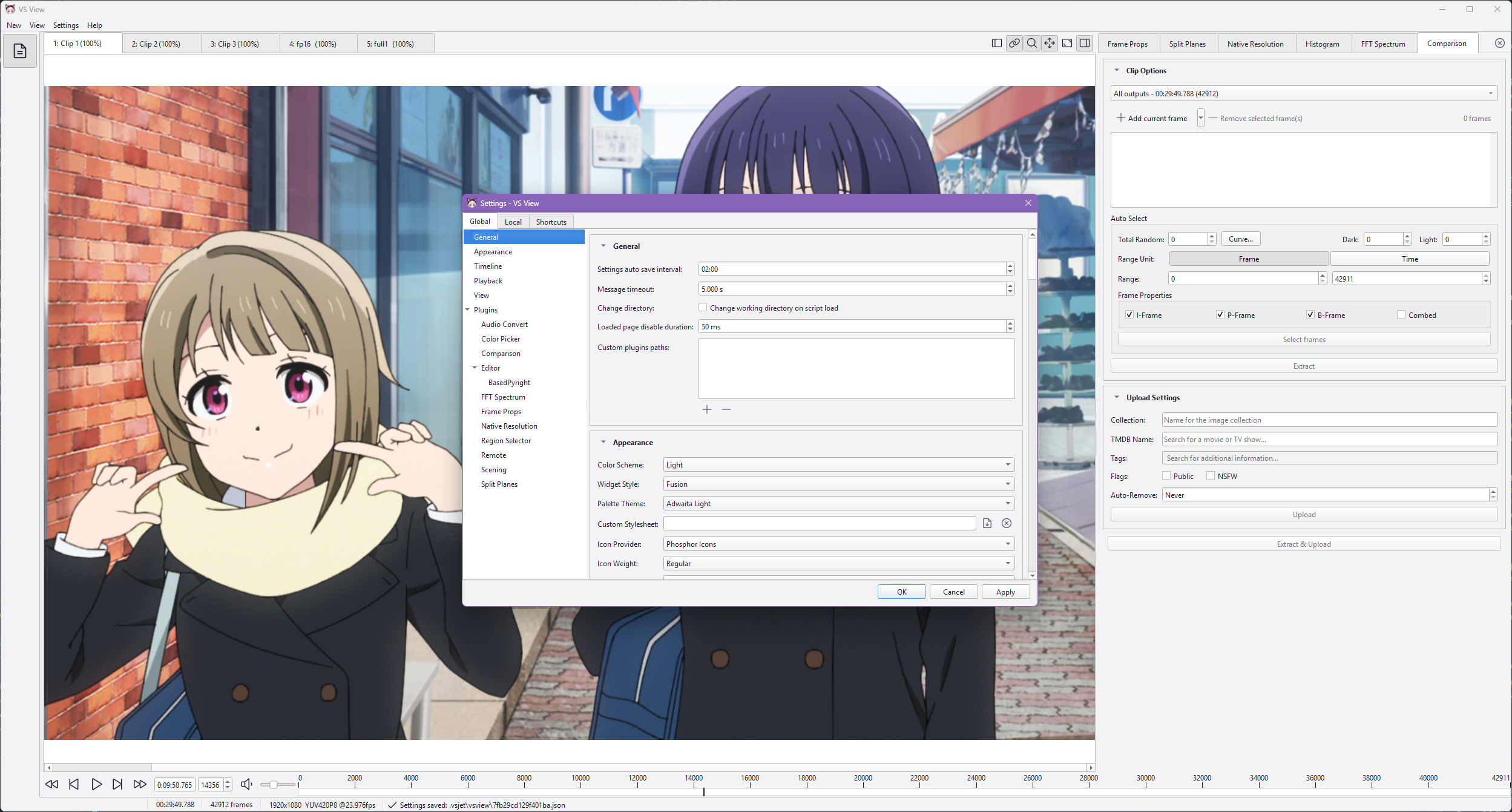
Selecting Light or Dark filters the Palette Theme dropdown to matching themes.
Widget Style
Sets the Qt widget style (e.g., Fusion, Windows).
Recommended Style
It is recommended to use the Fusion widget style when a custom palette theme is selected, as it provides the most consistent appearance across all controls.
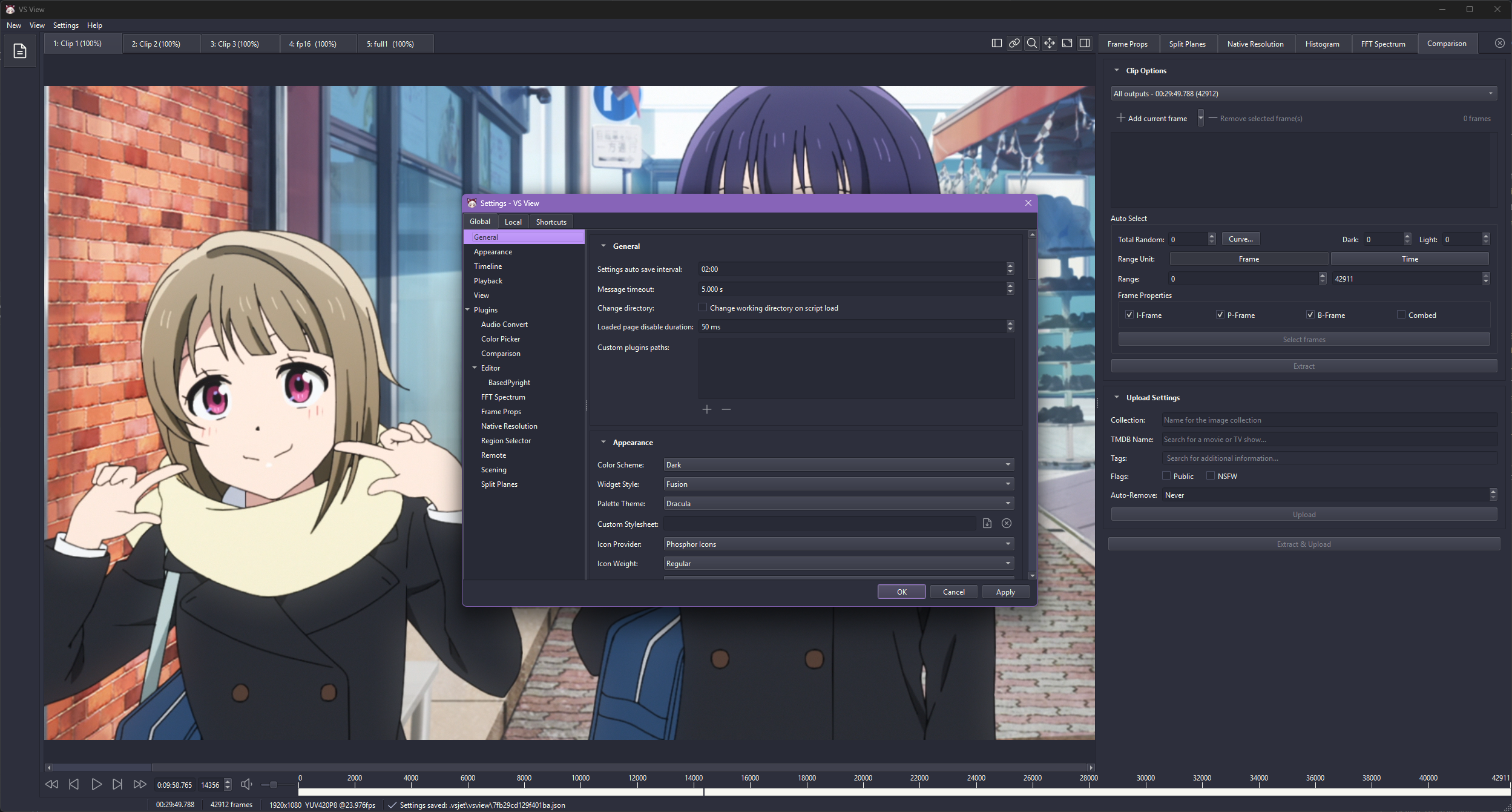
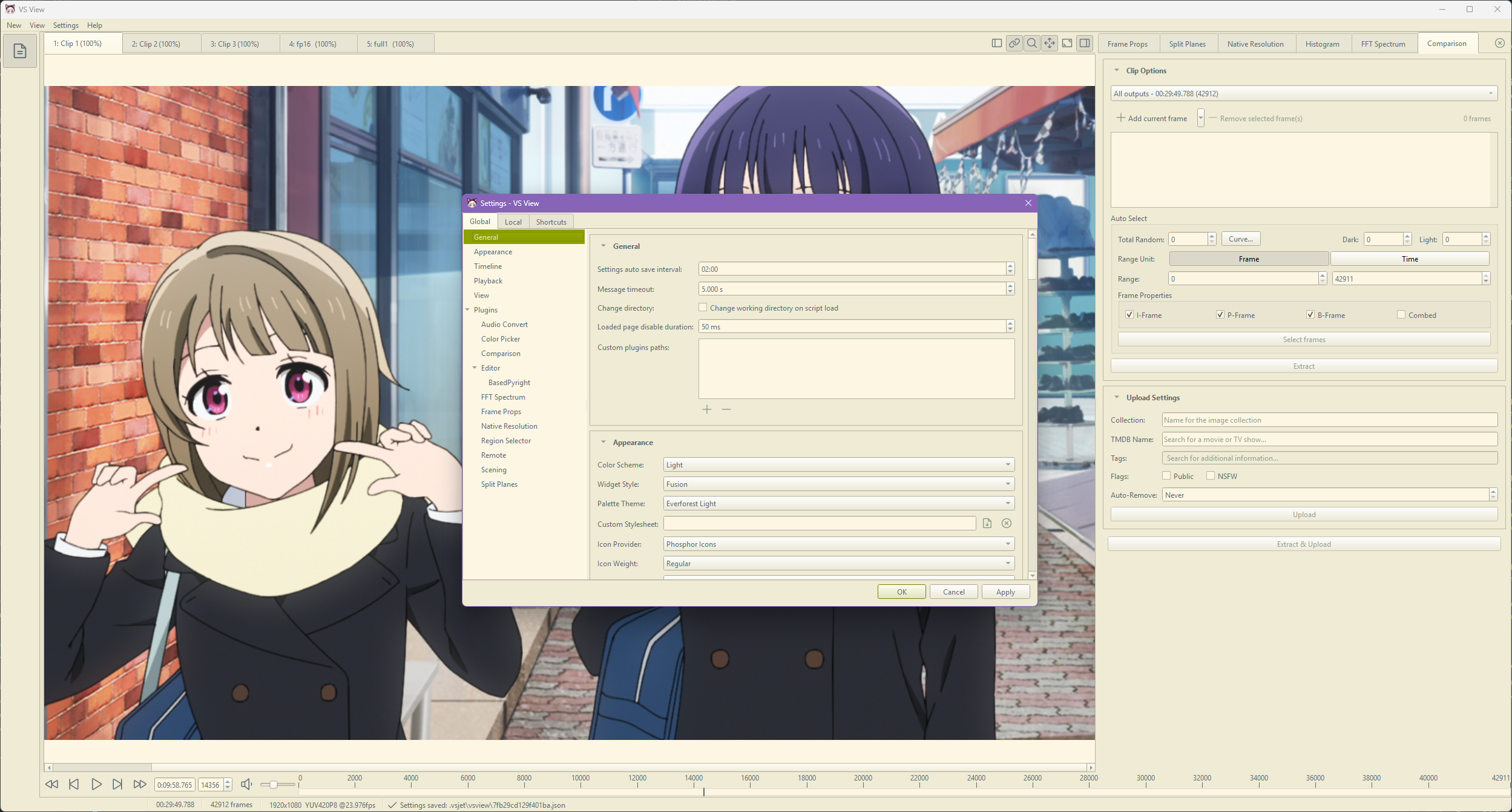
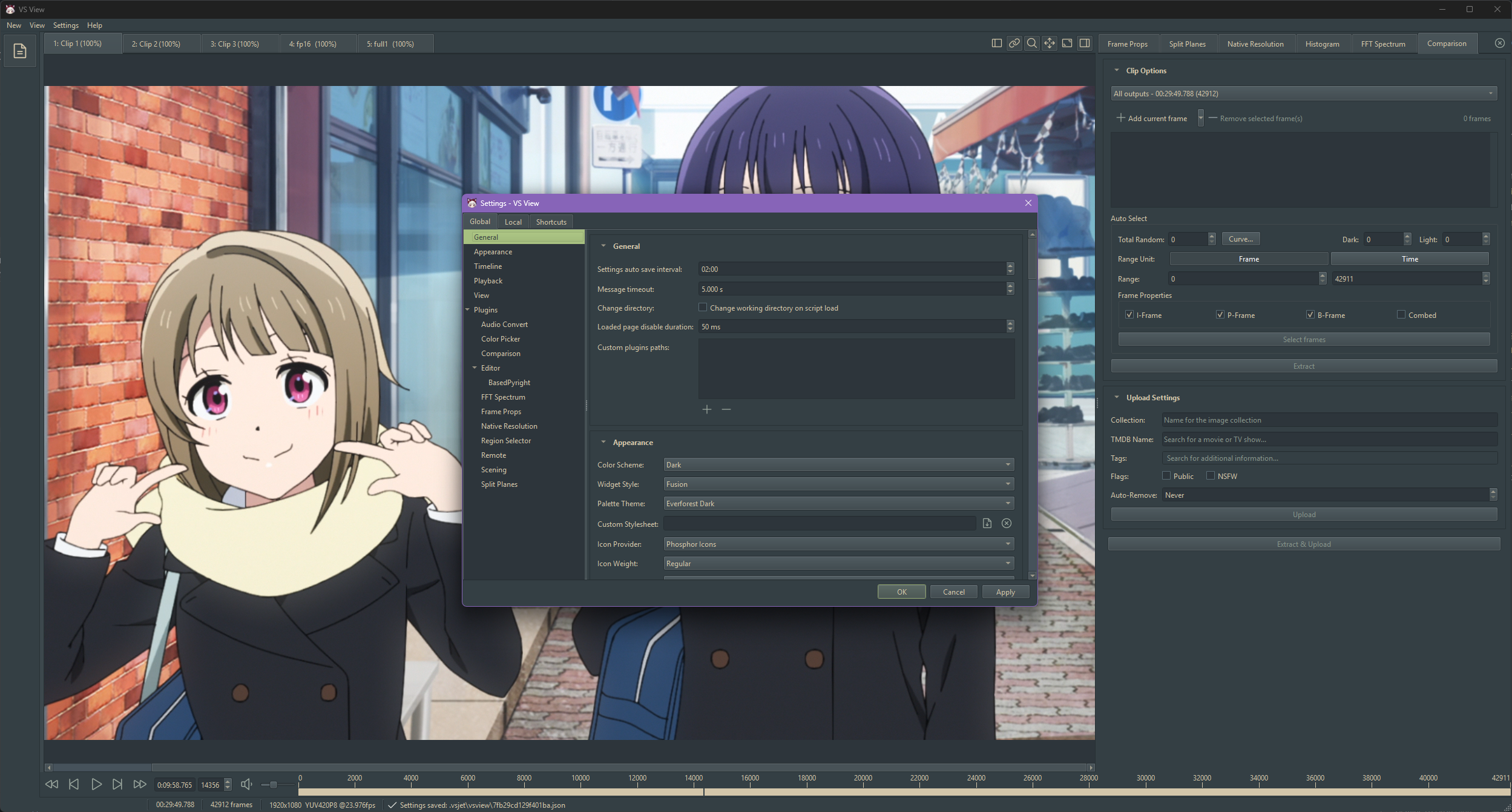
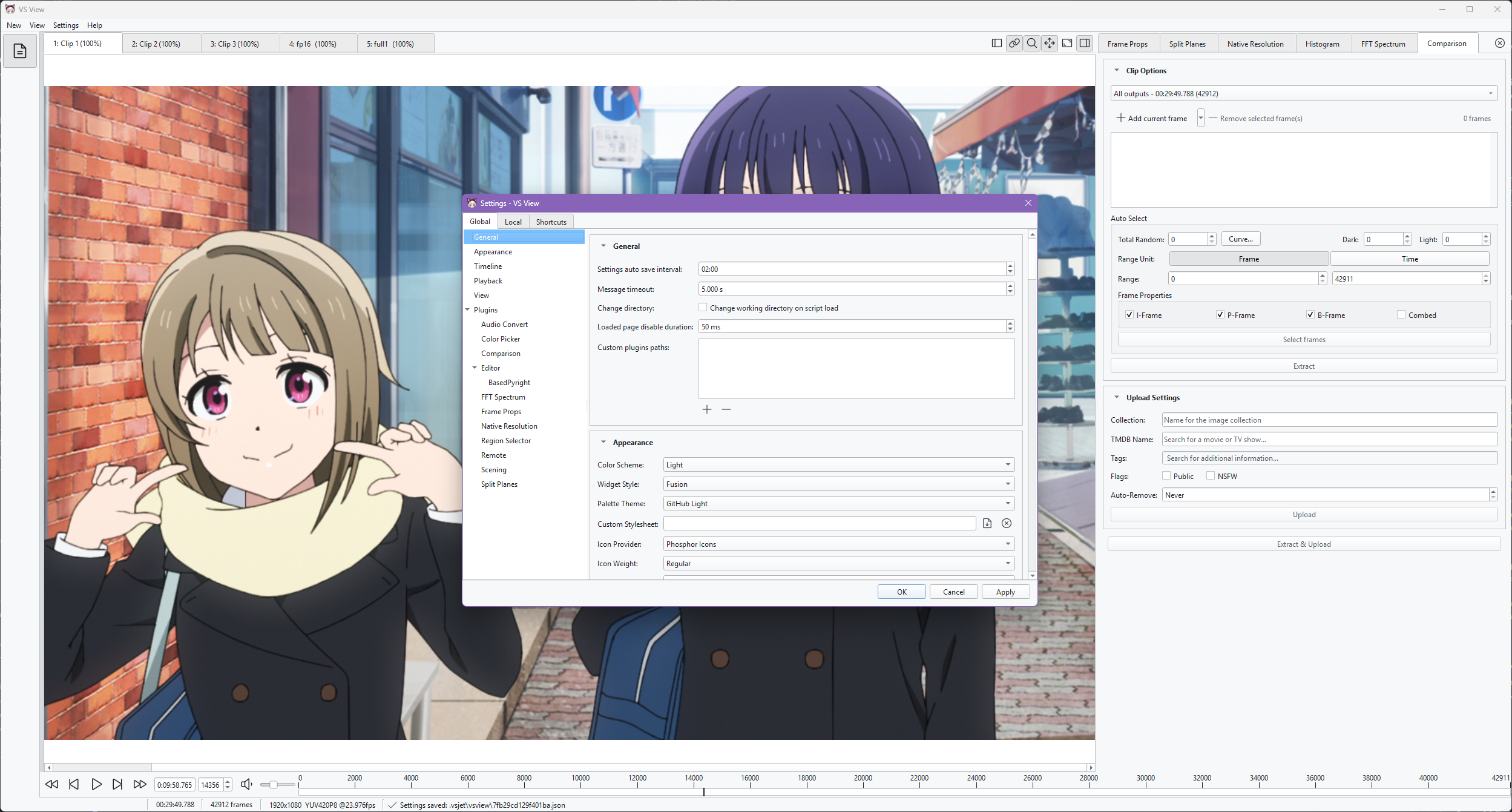
Palette Theme
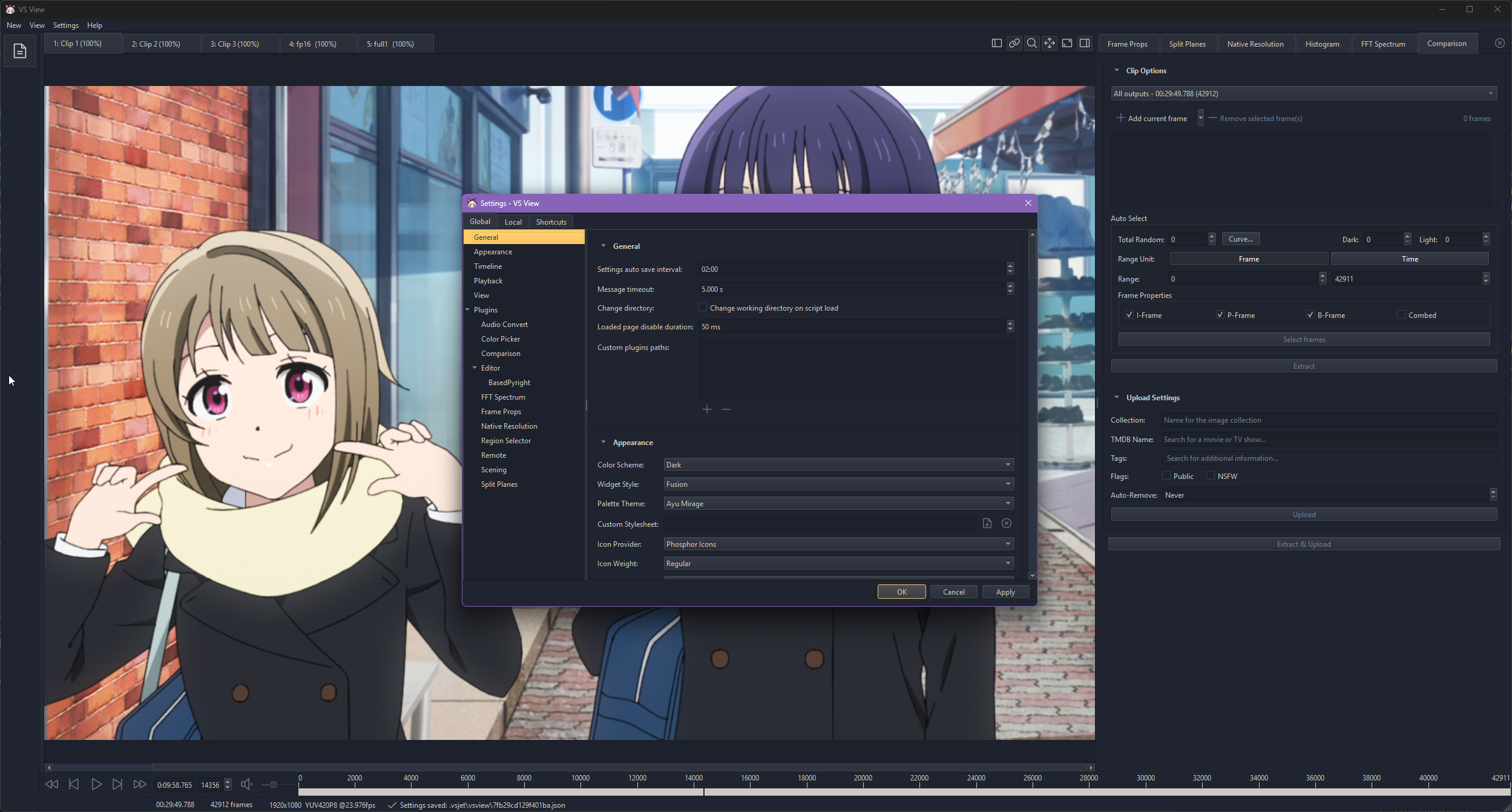
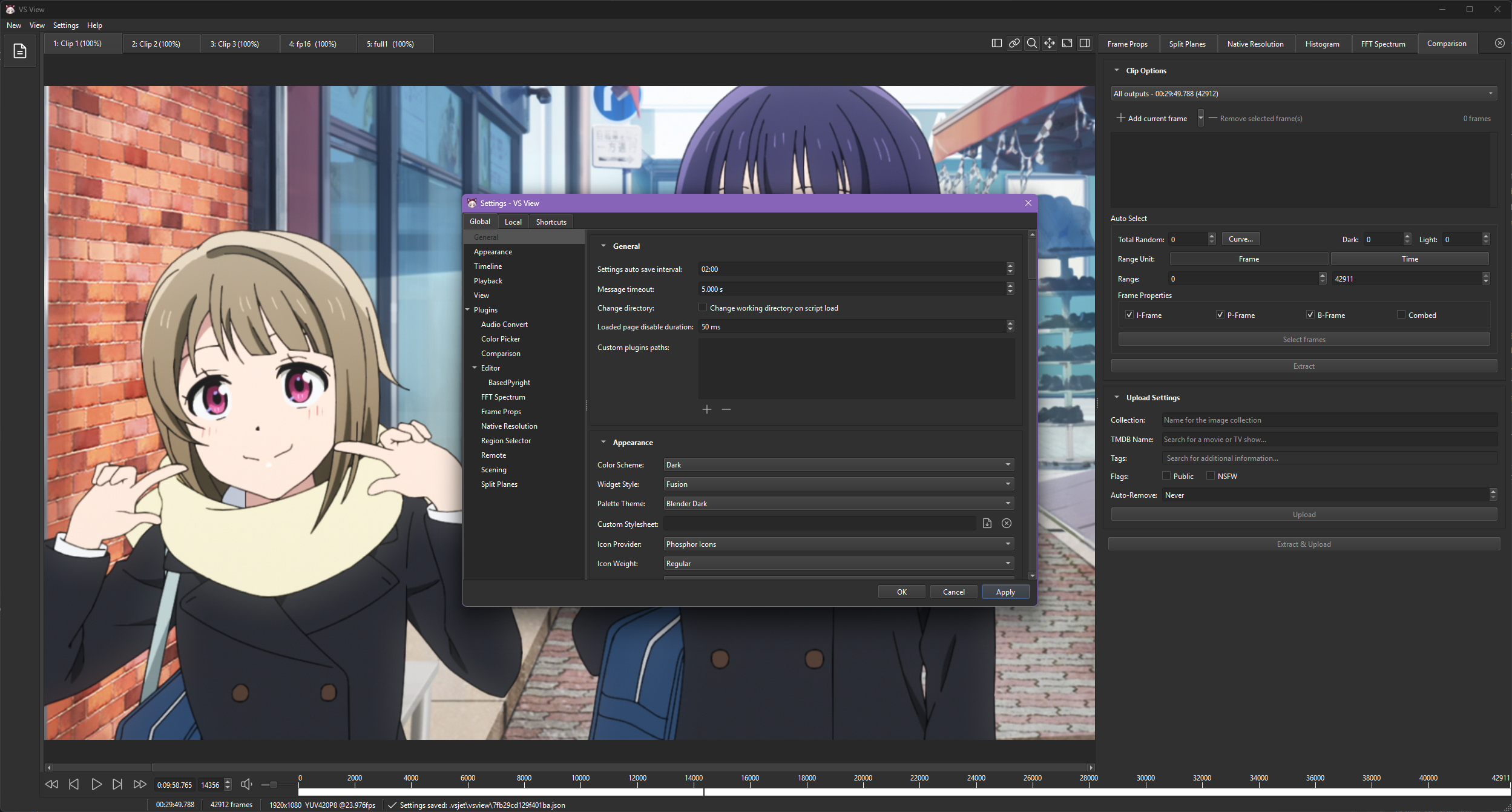
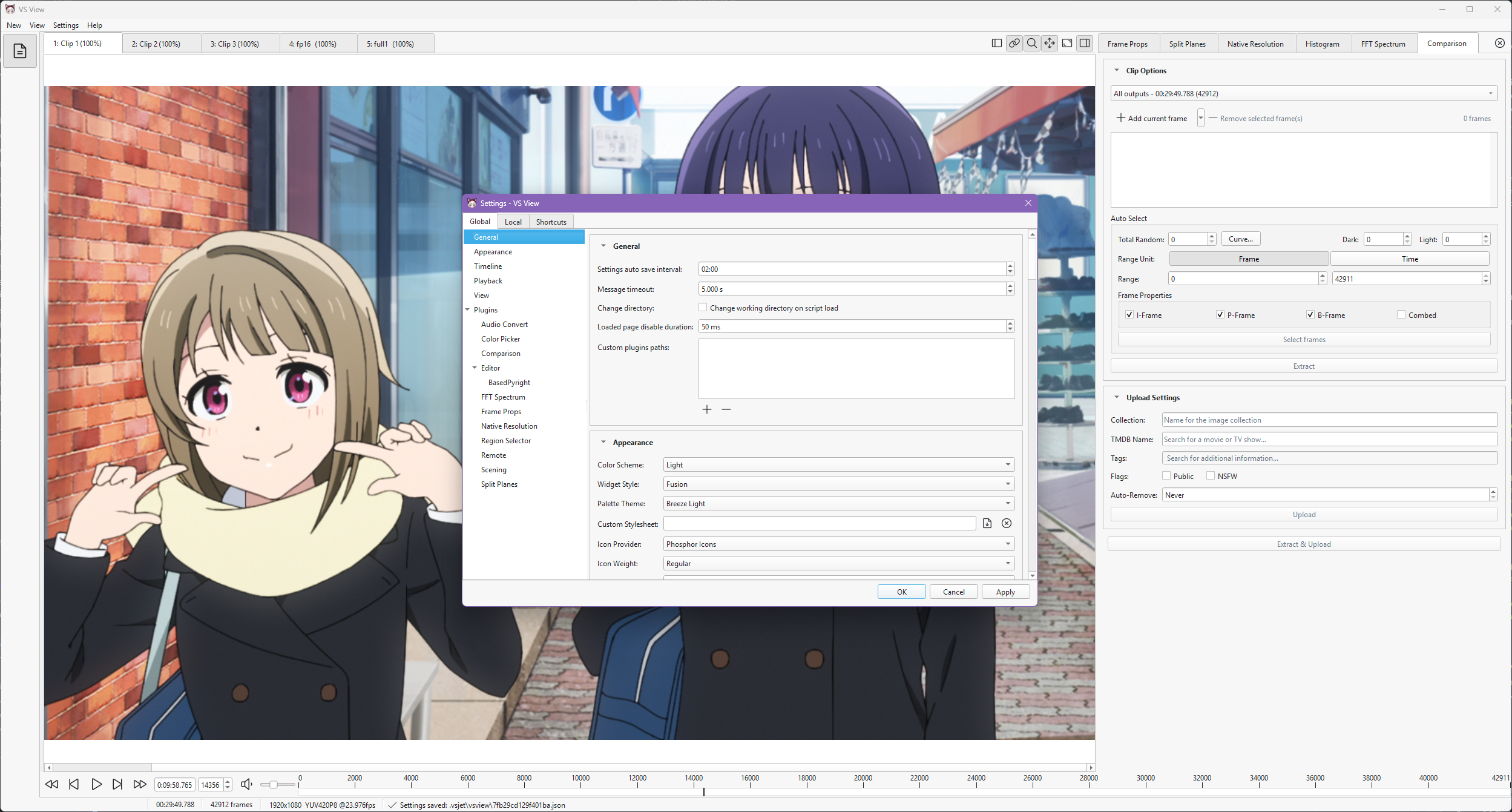
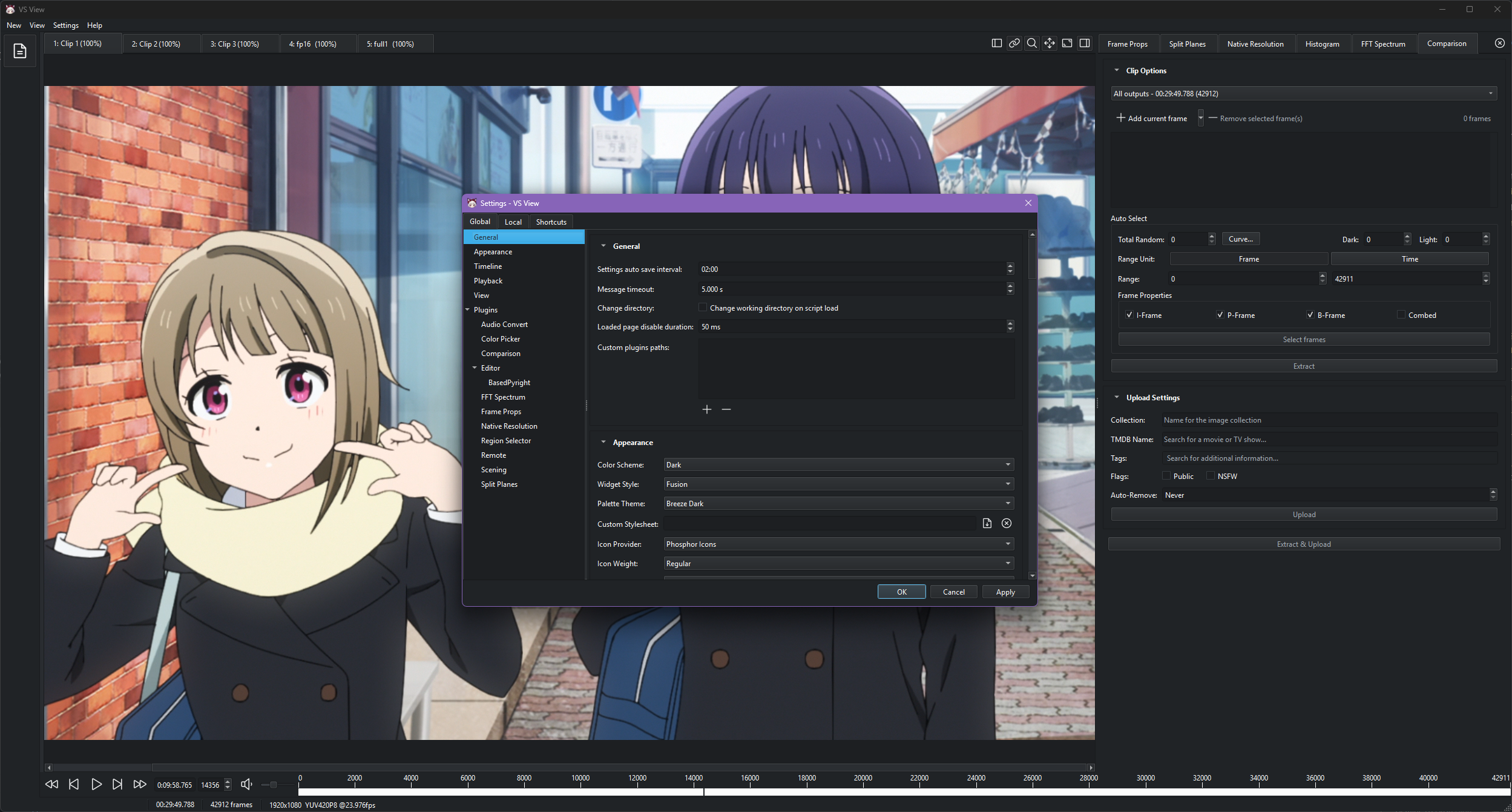
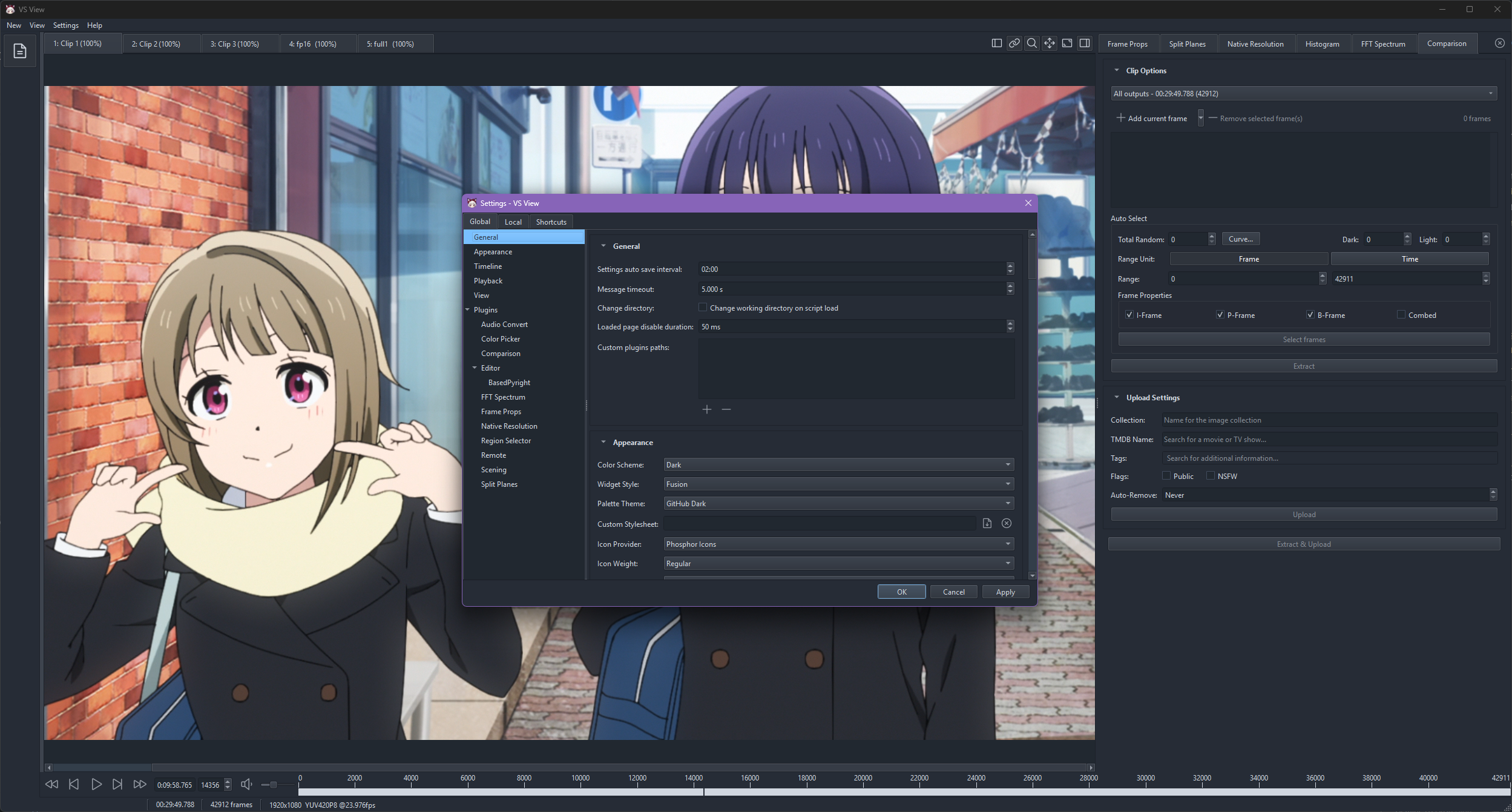
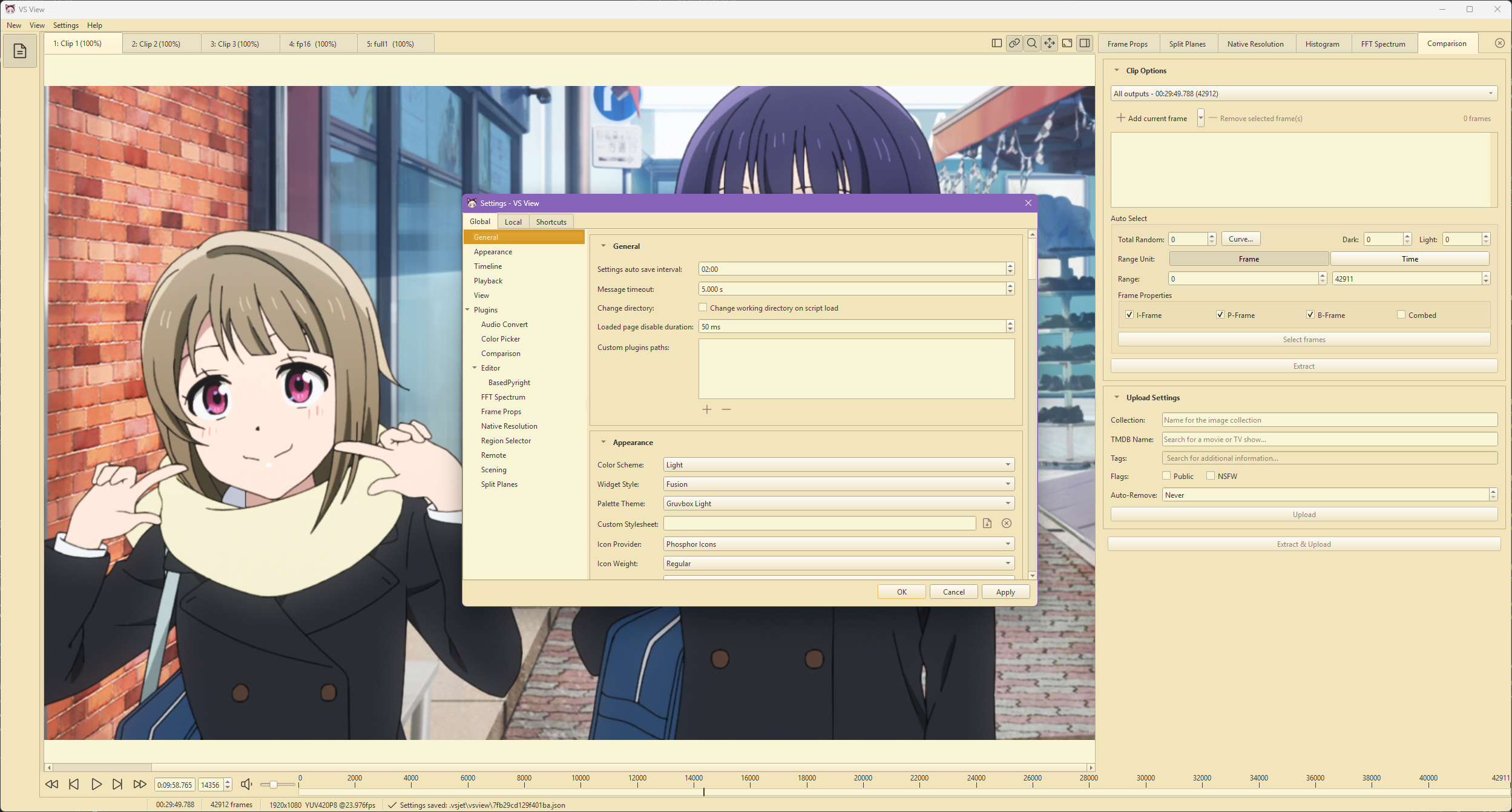
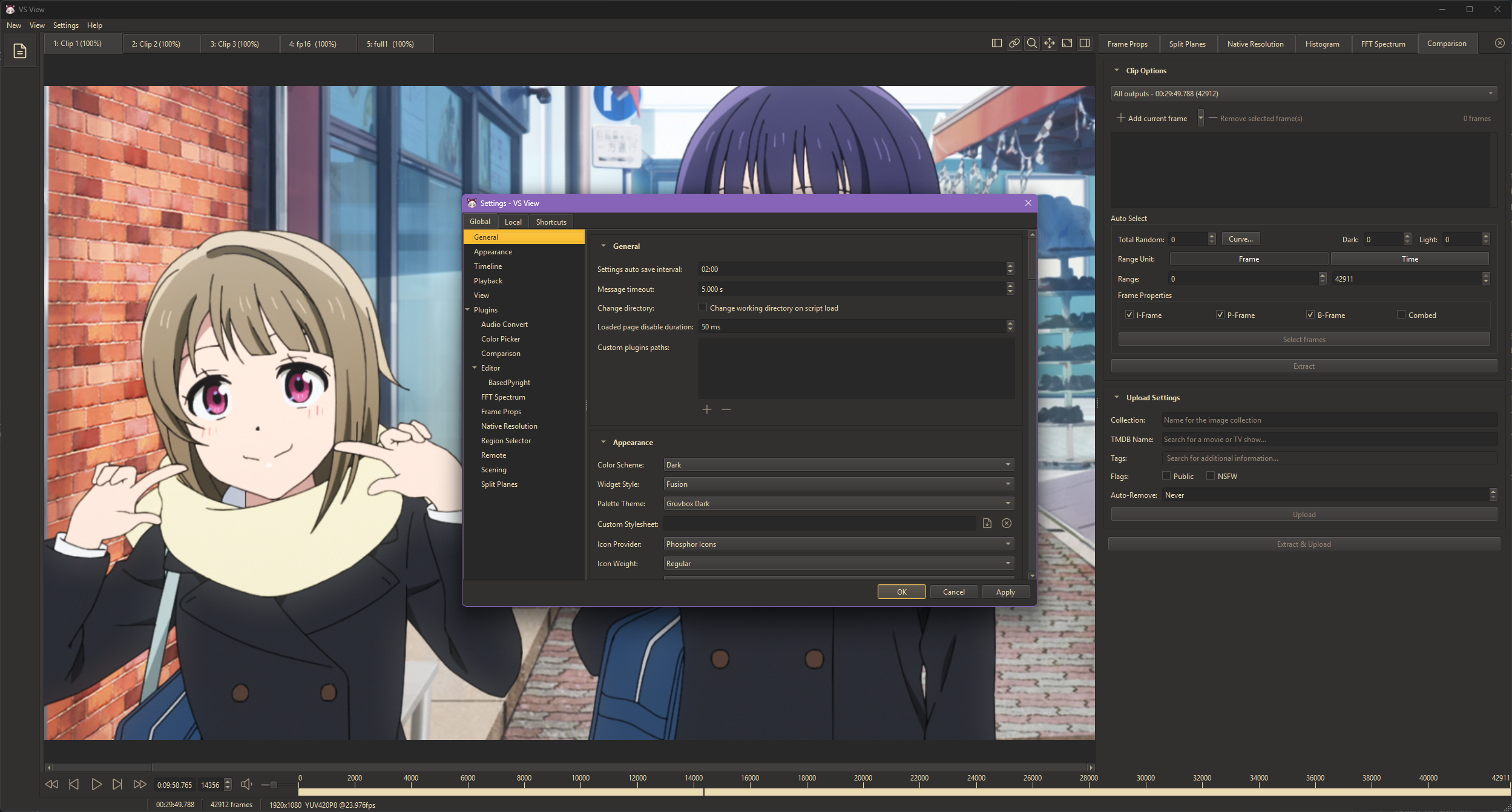
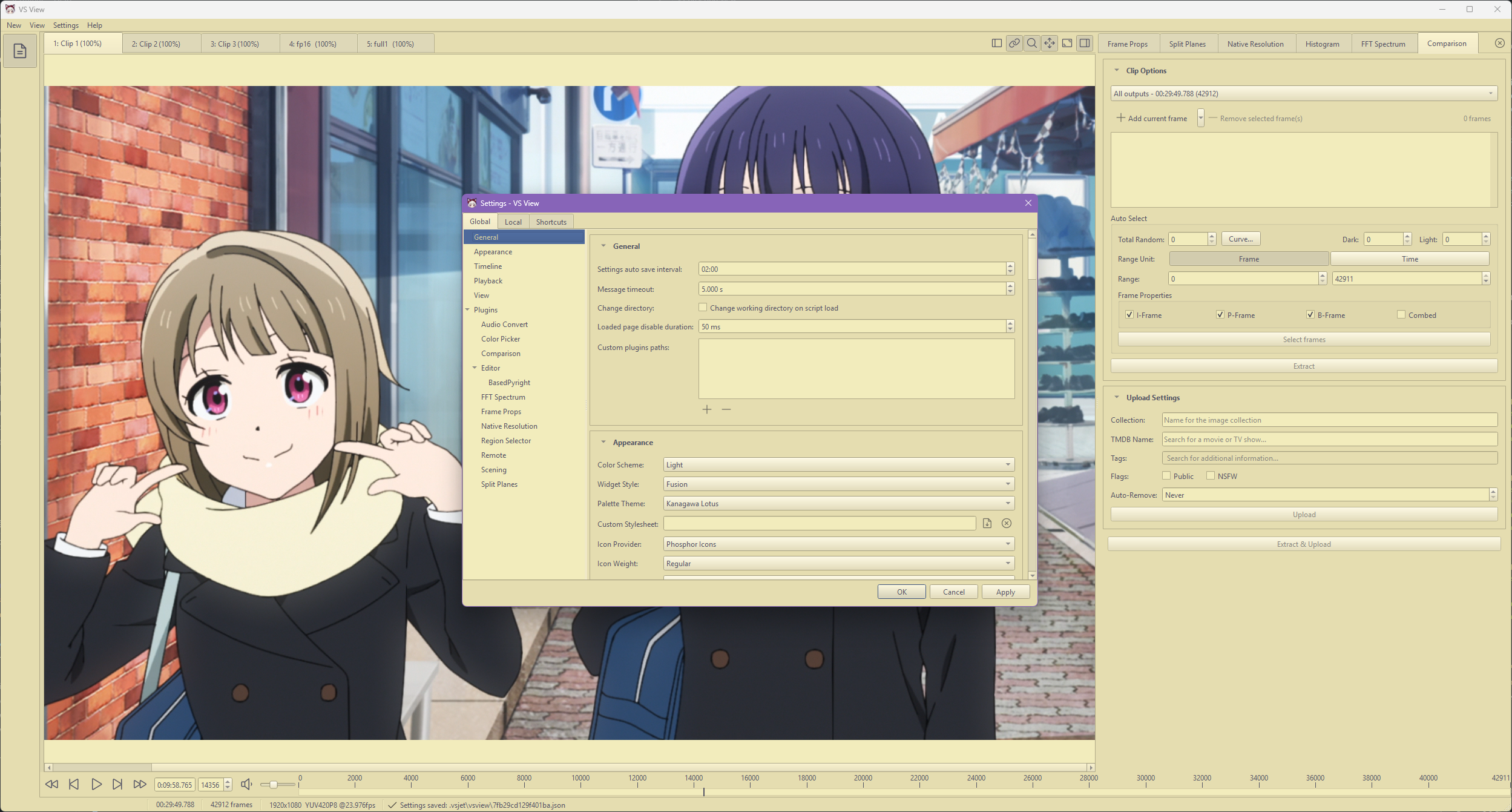
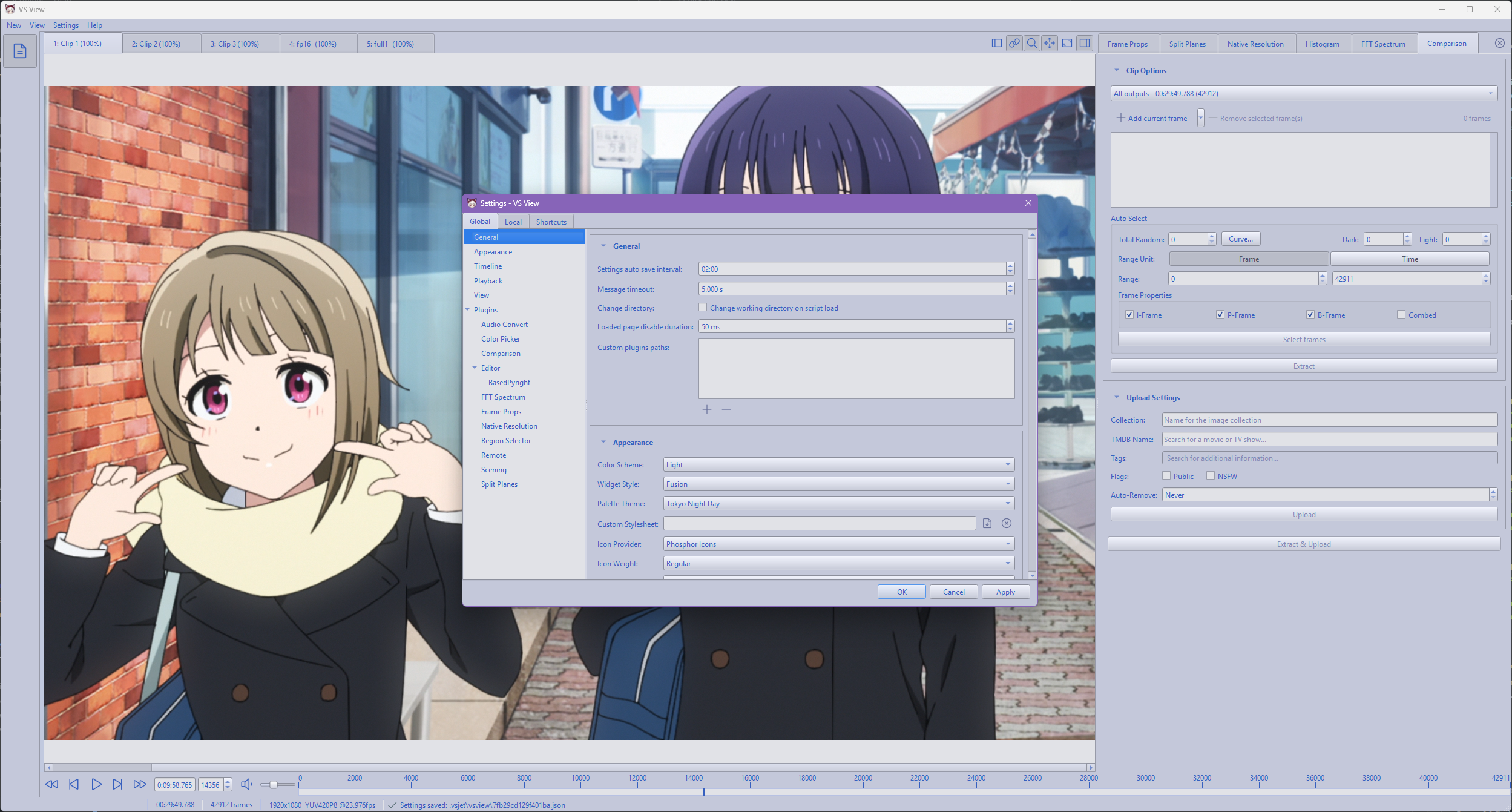
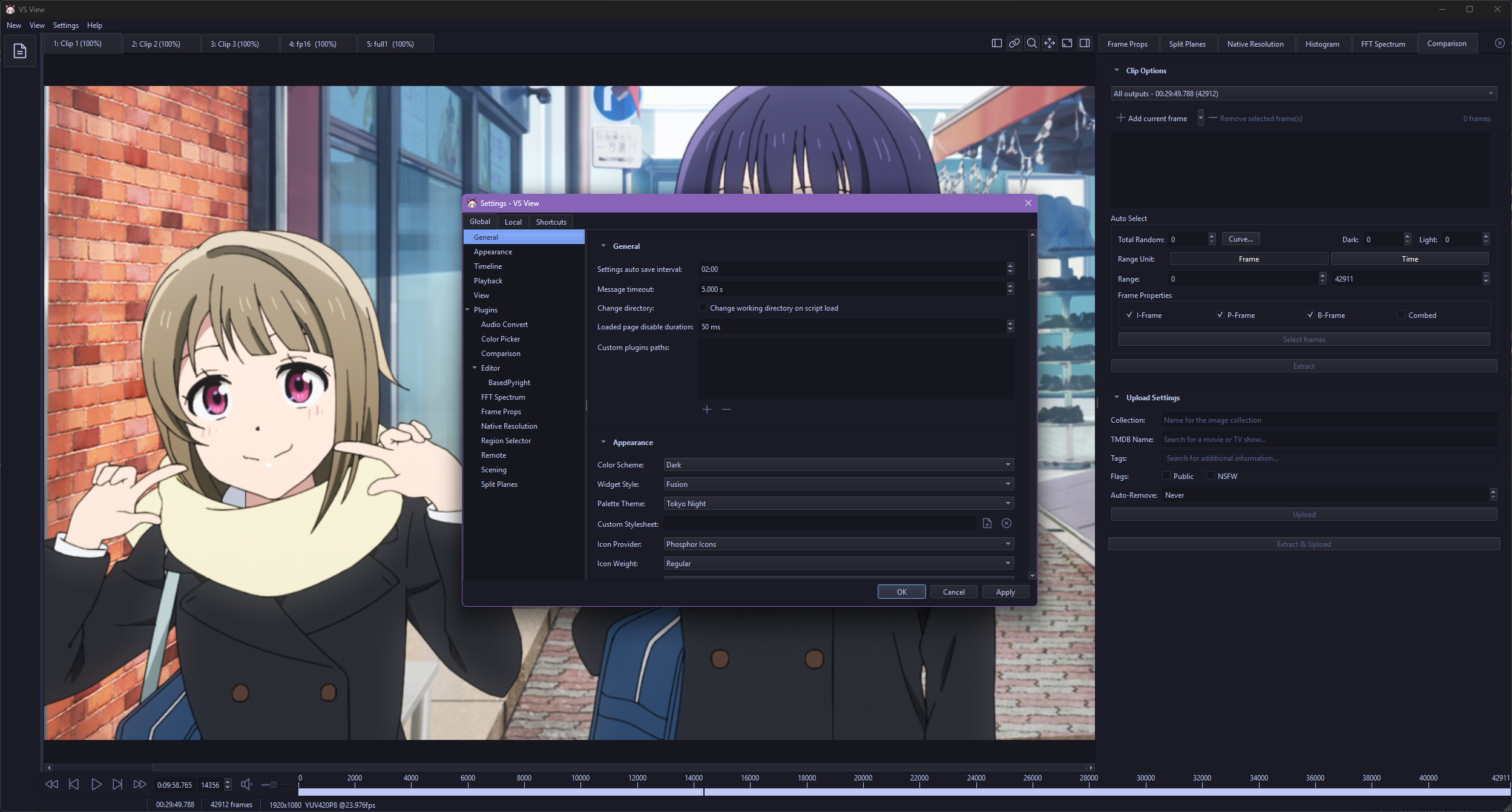
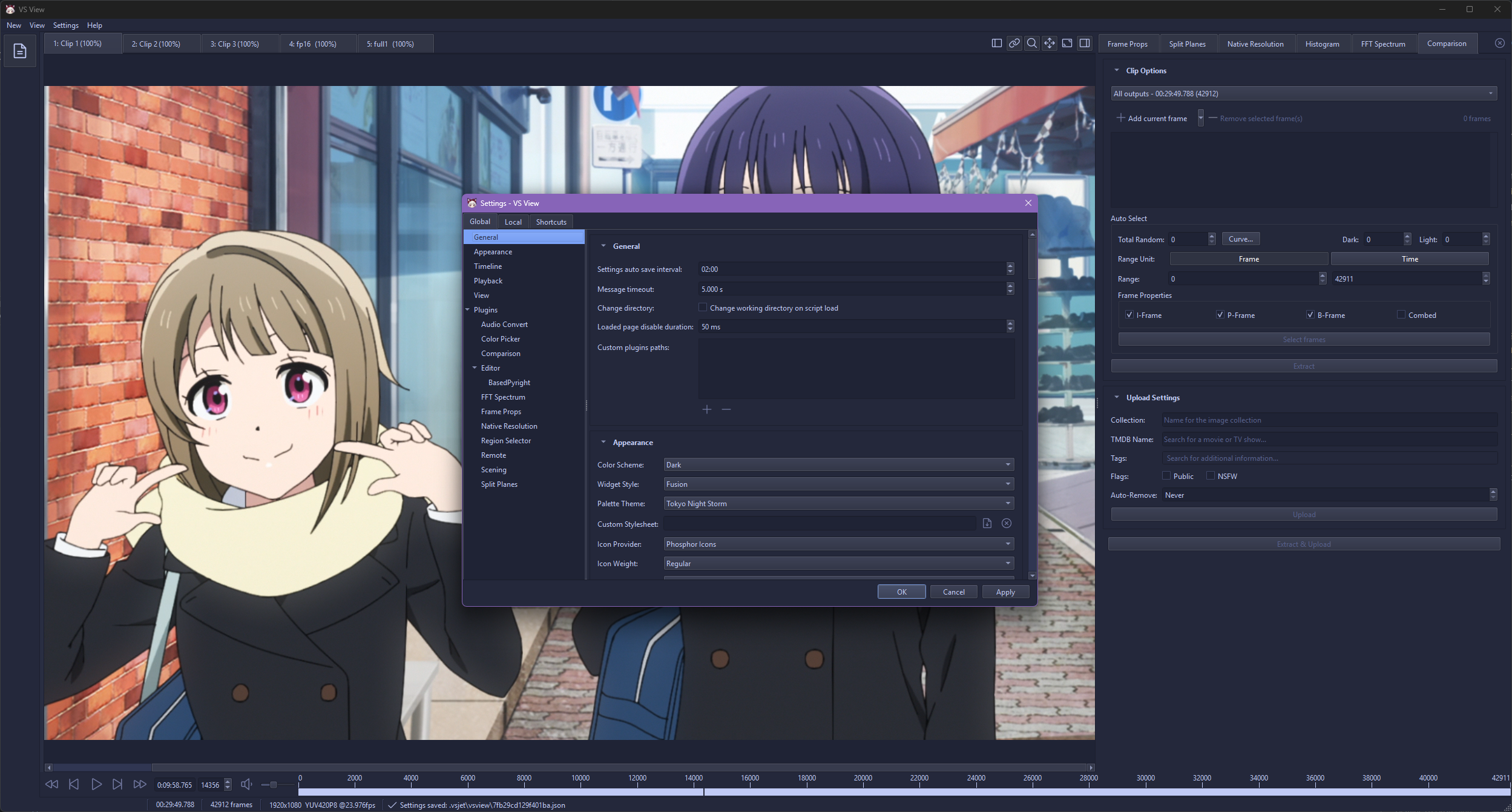
Applies a color palette across the UI. The examples below use the Fusion widget style.
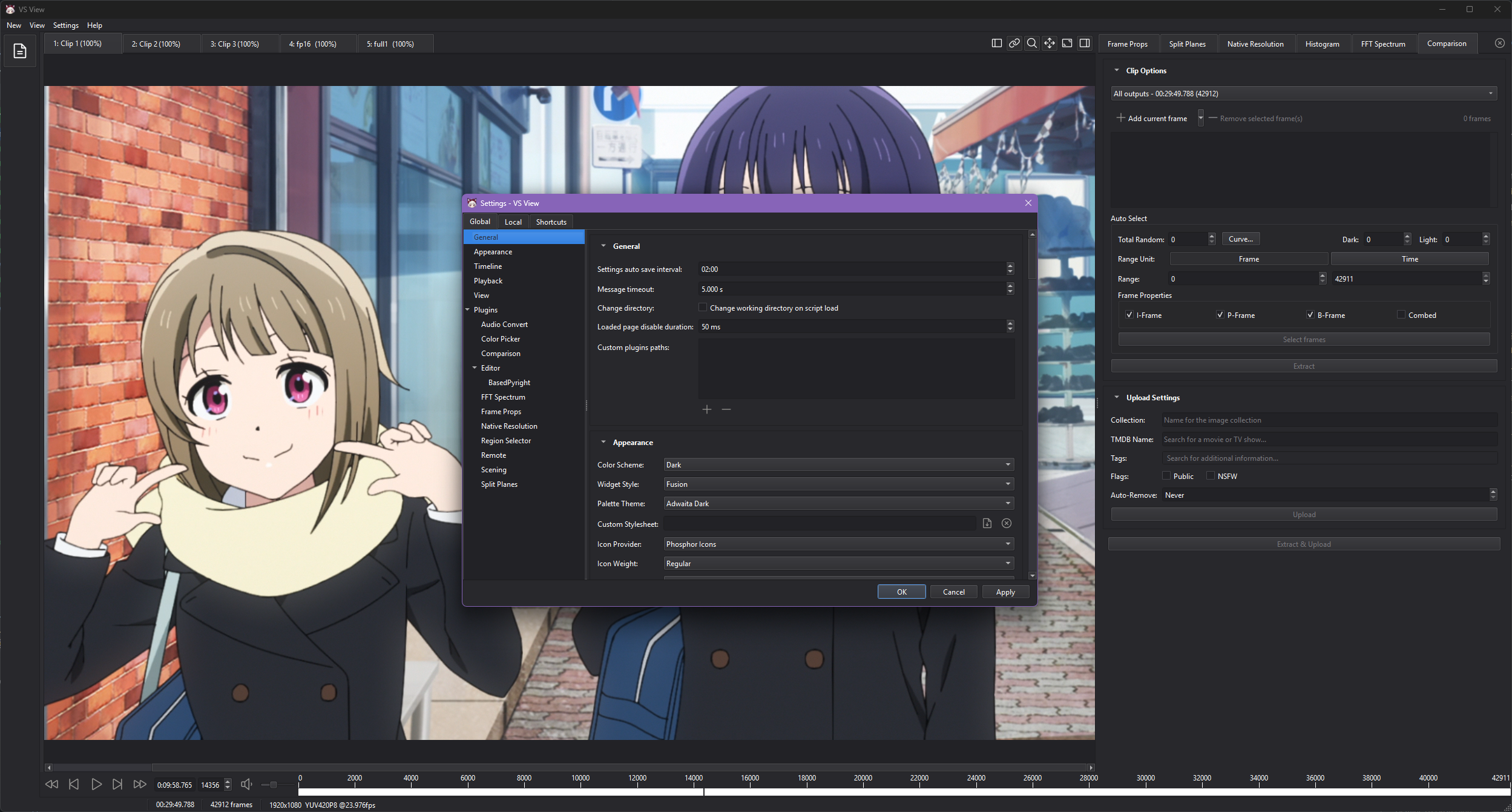
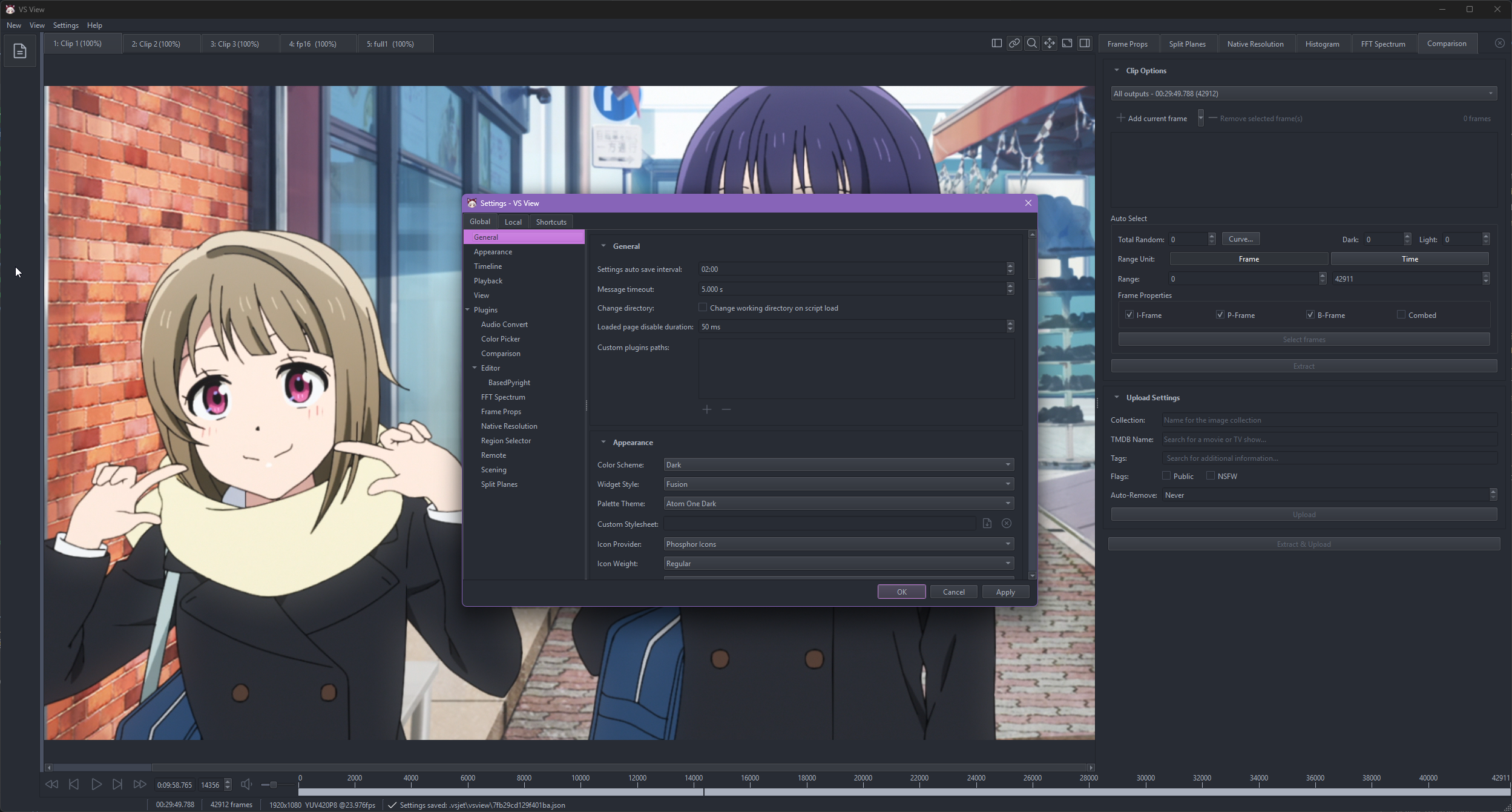
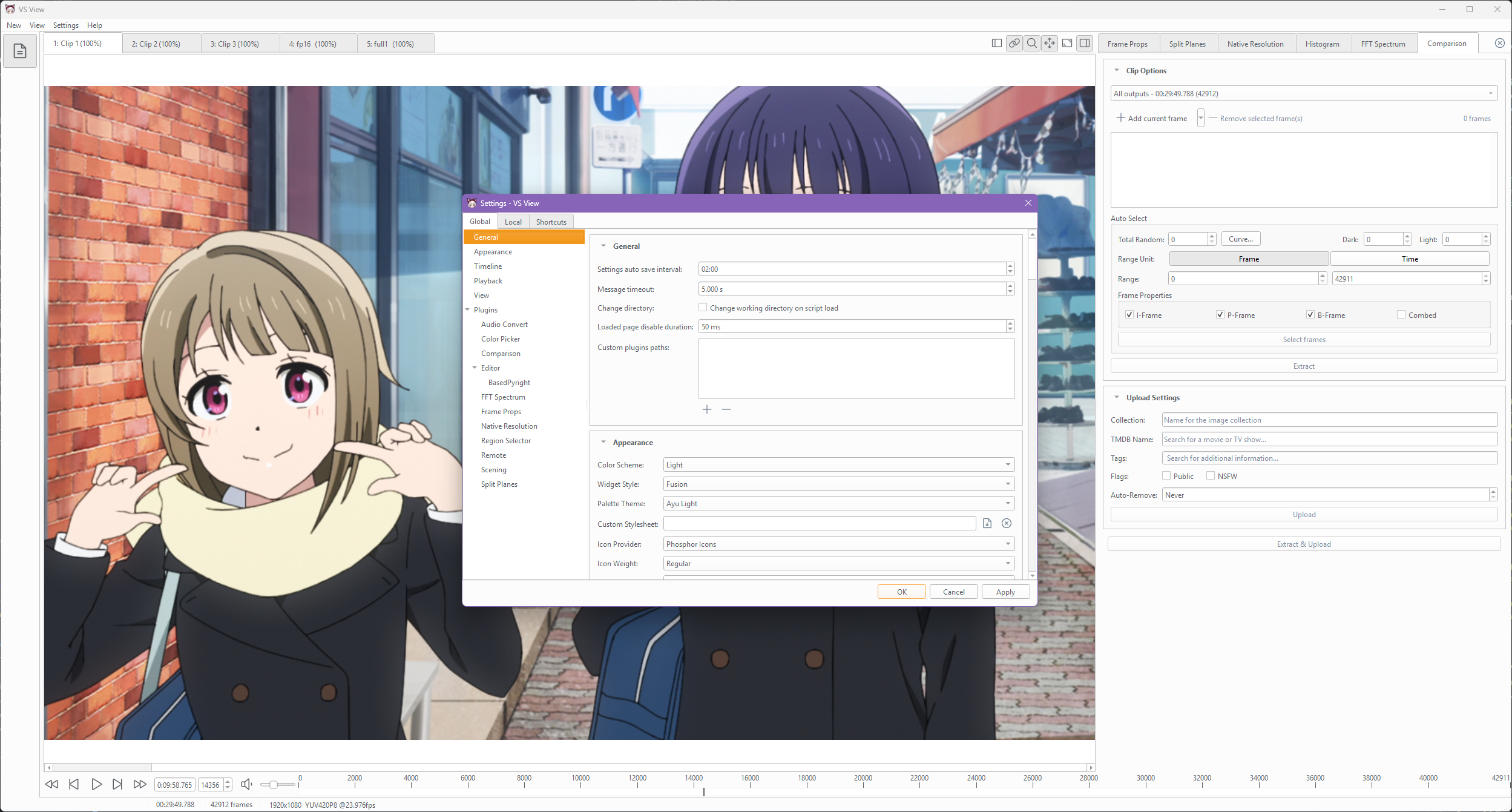
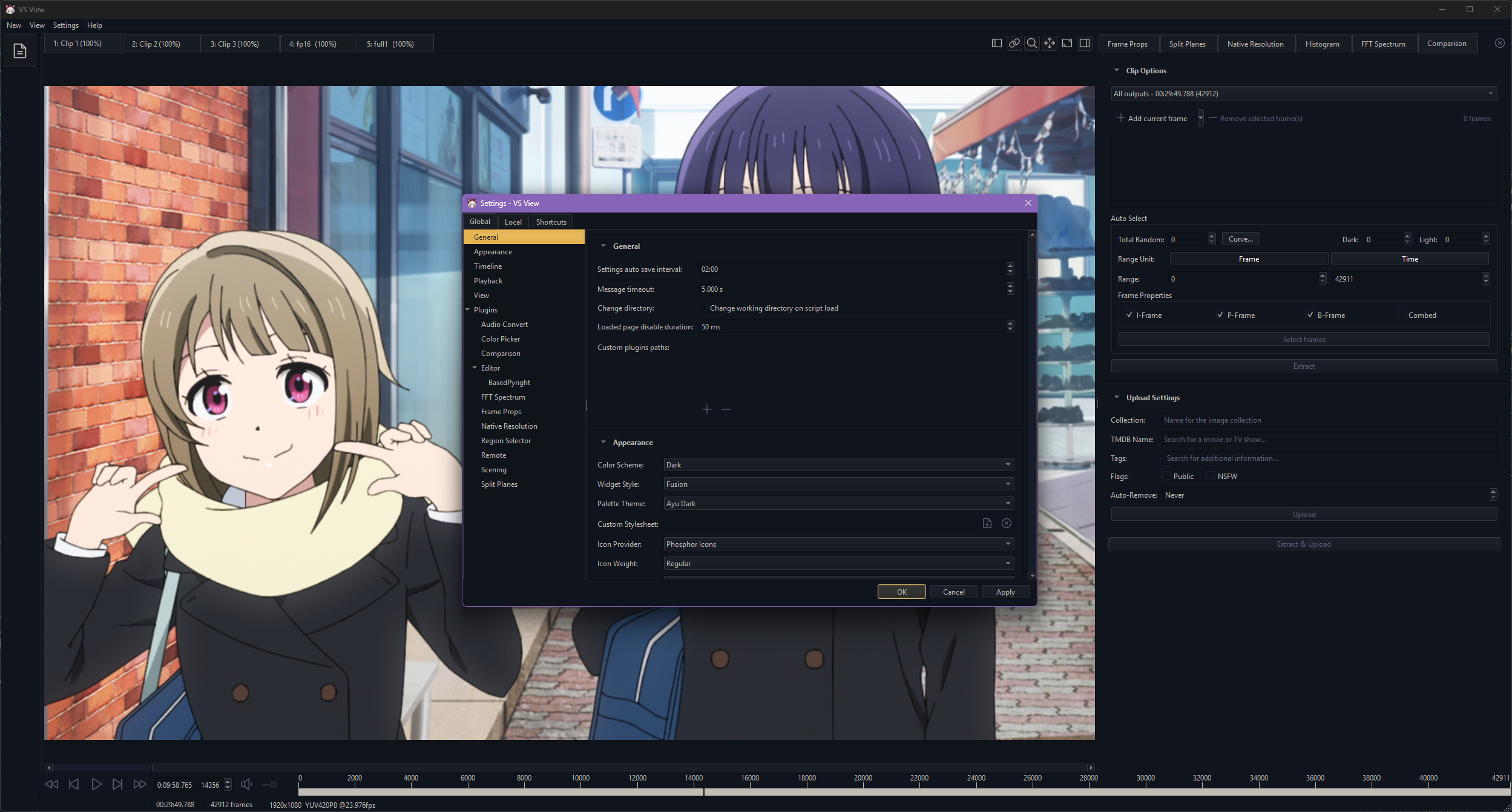
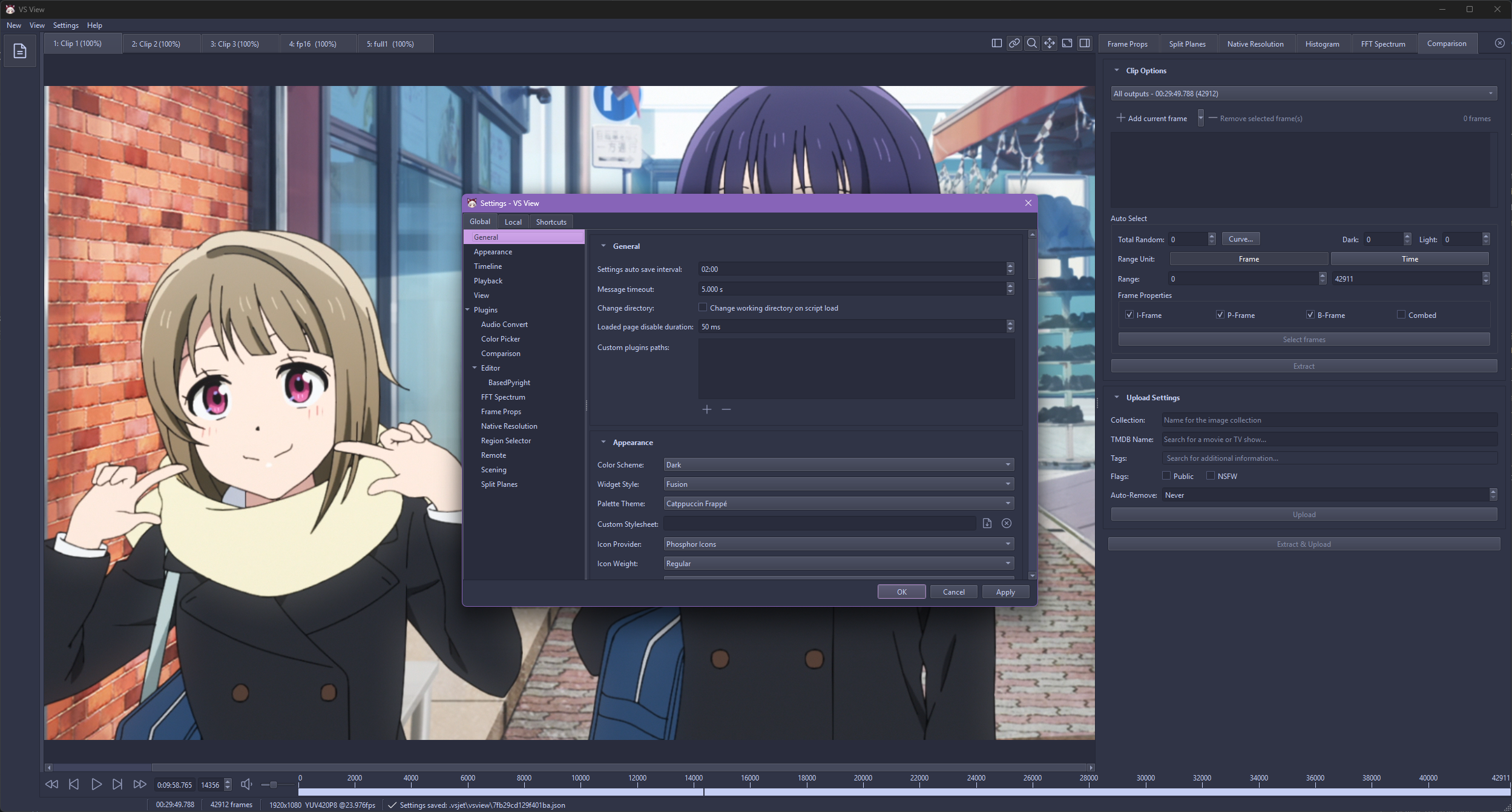
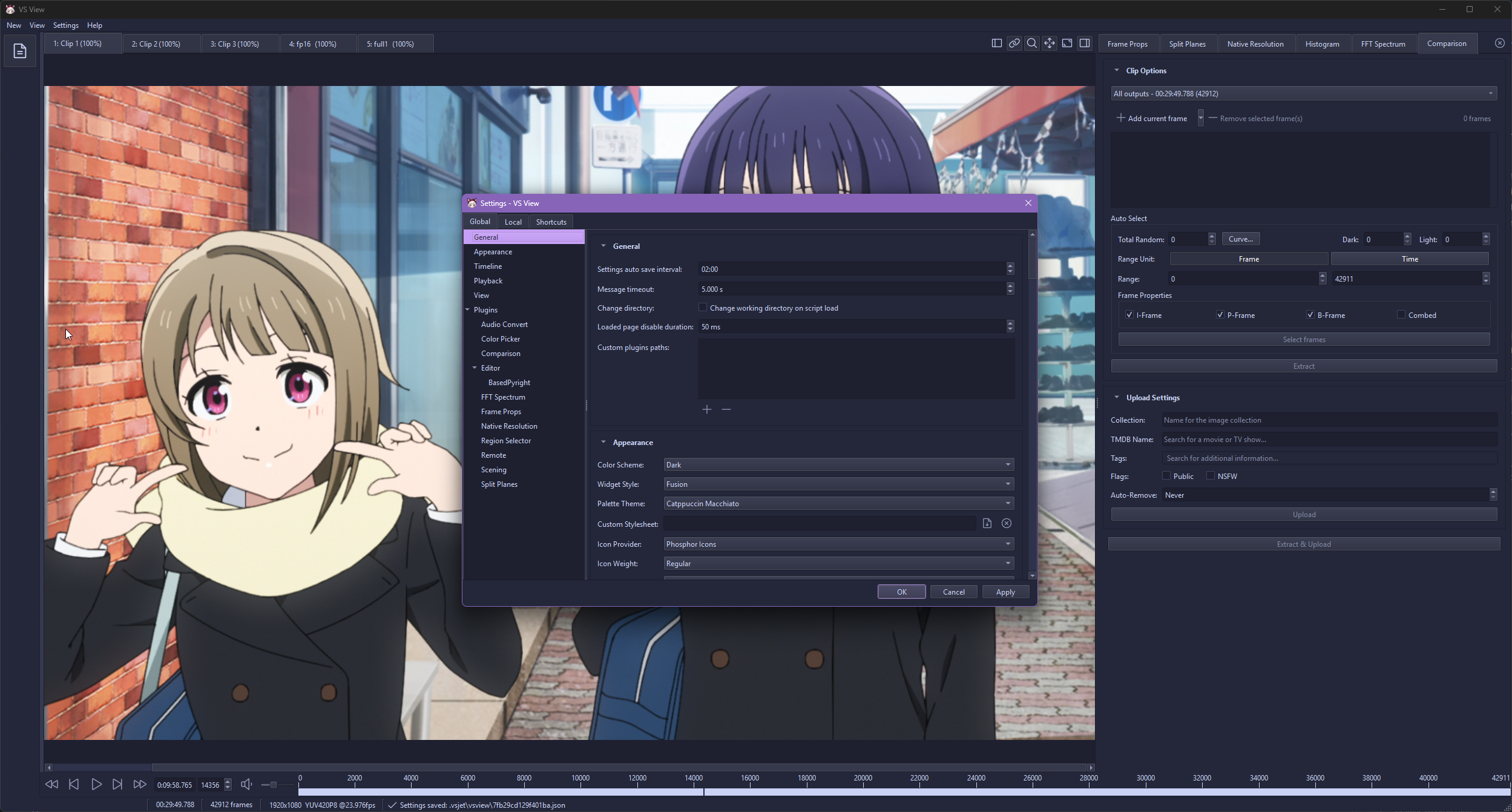
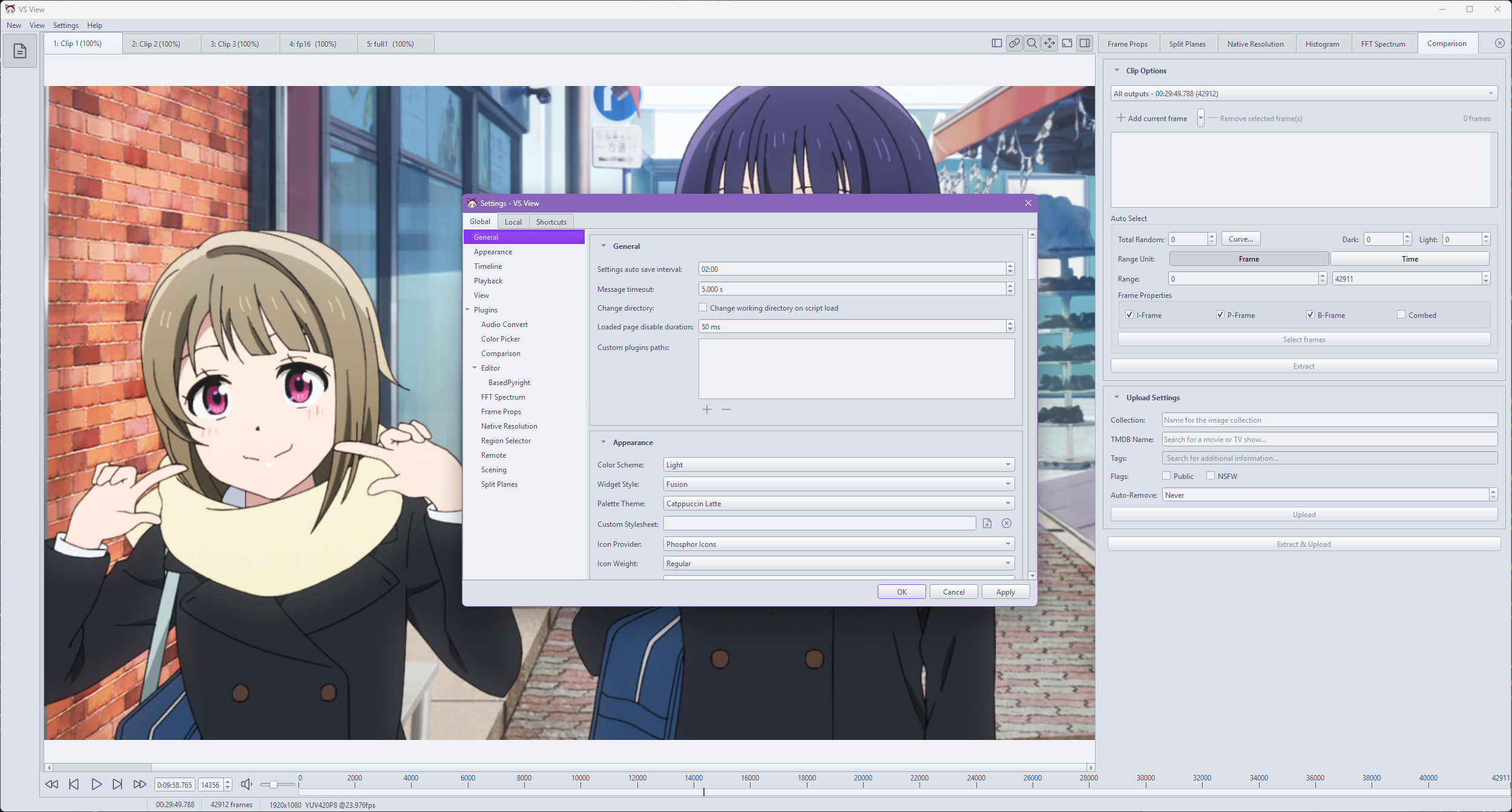
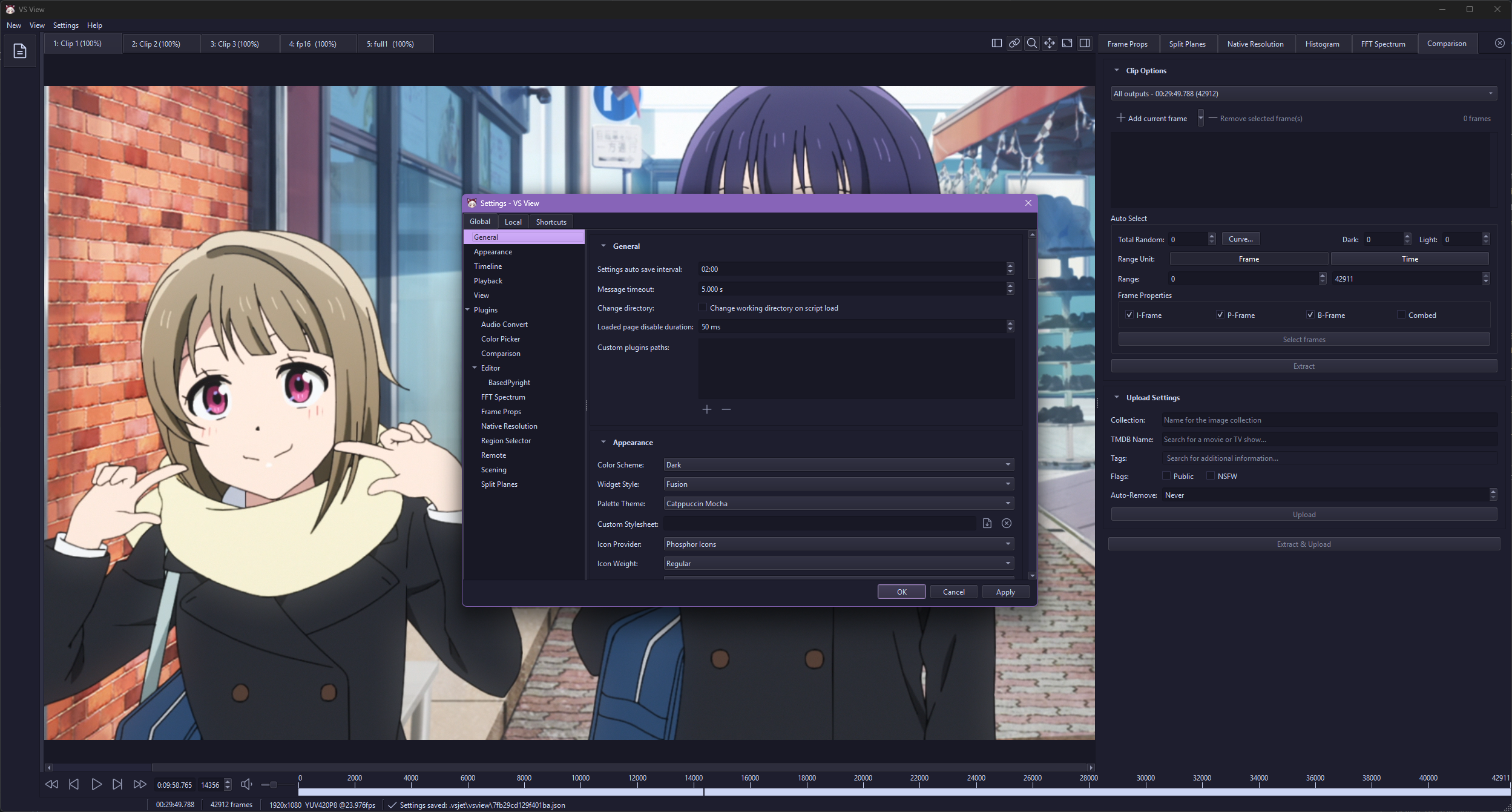
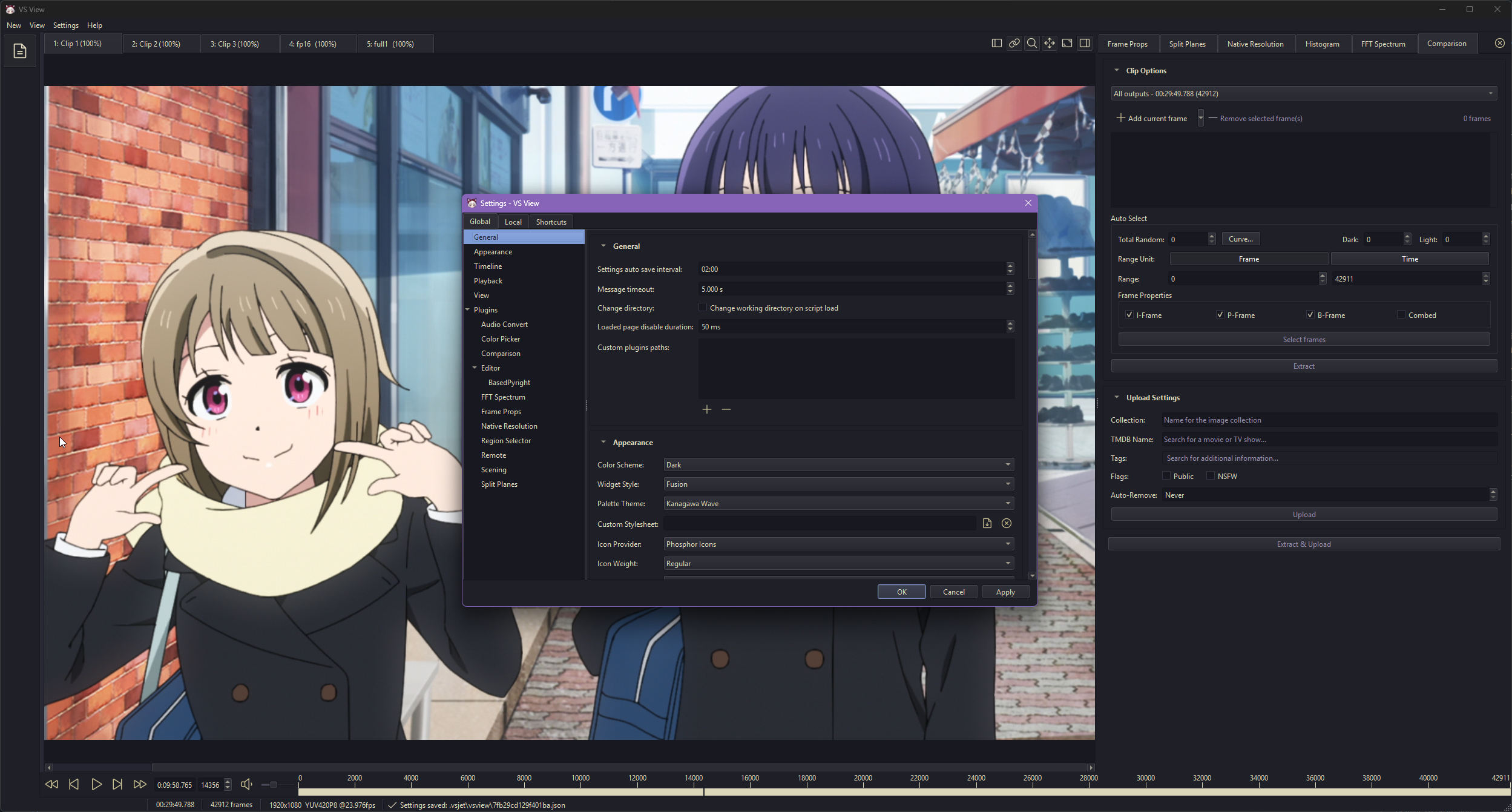
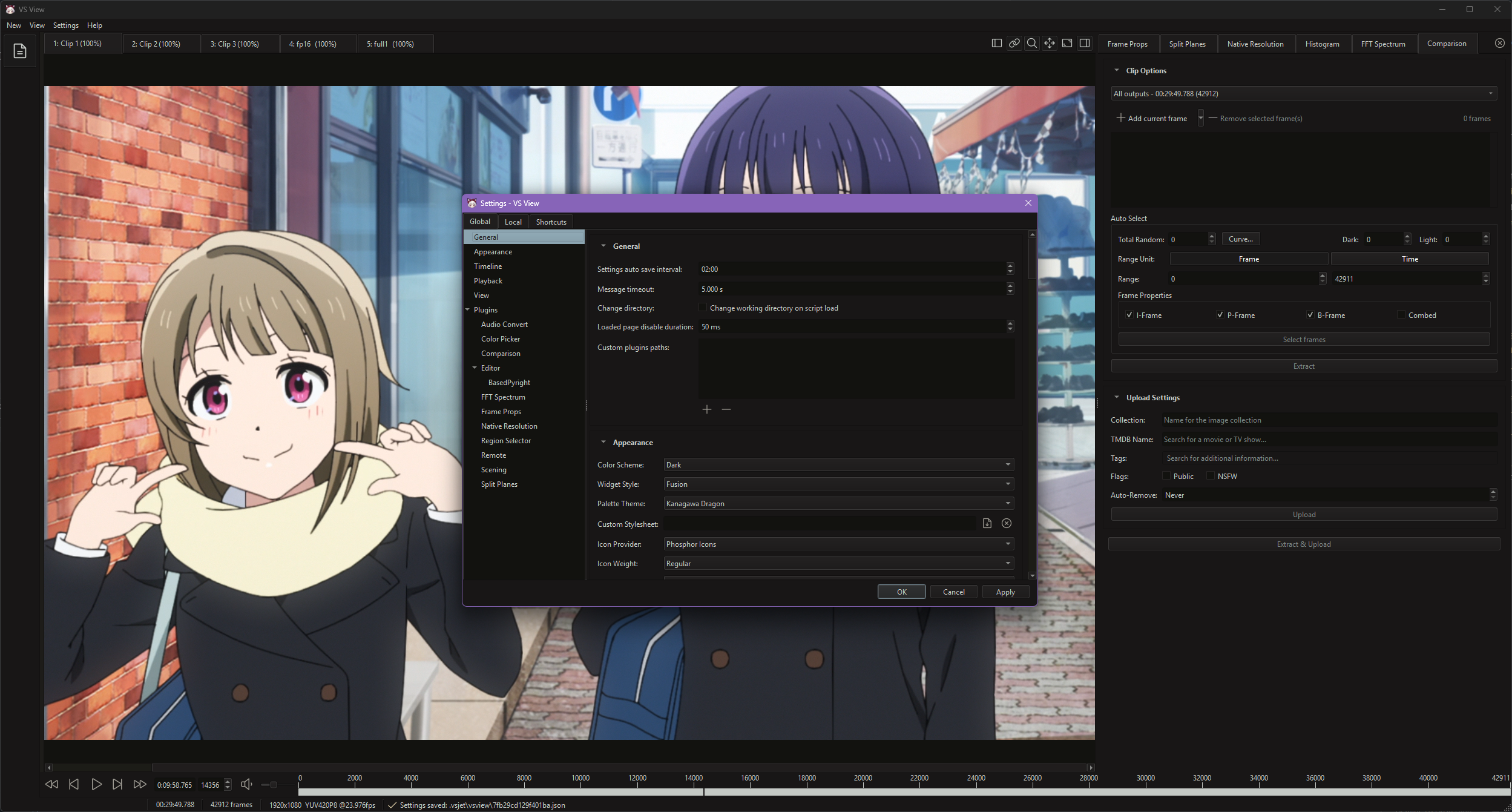
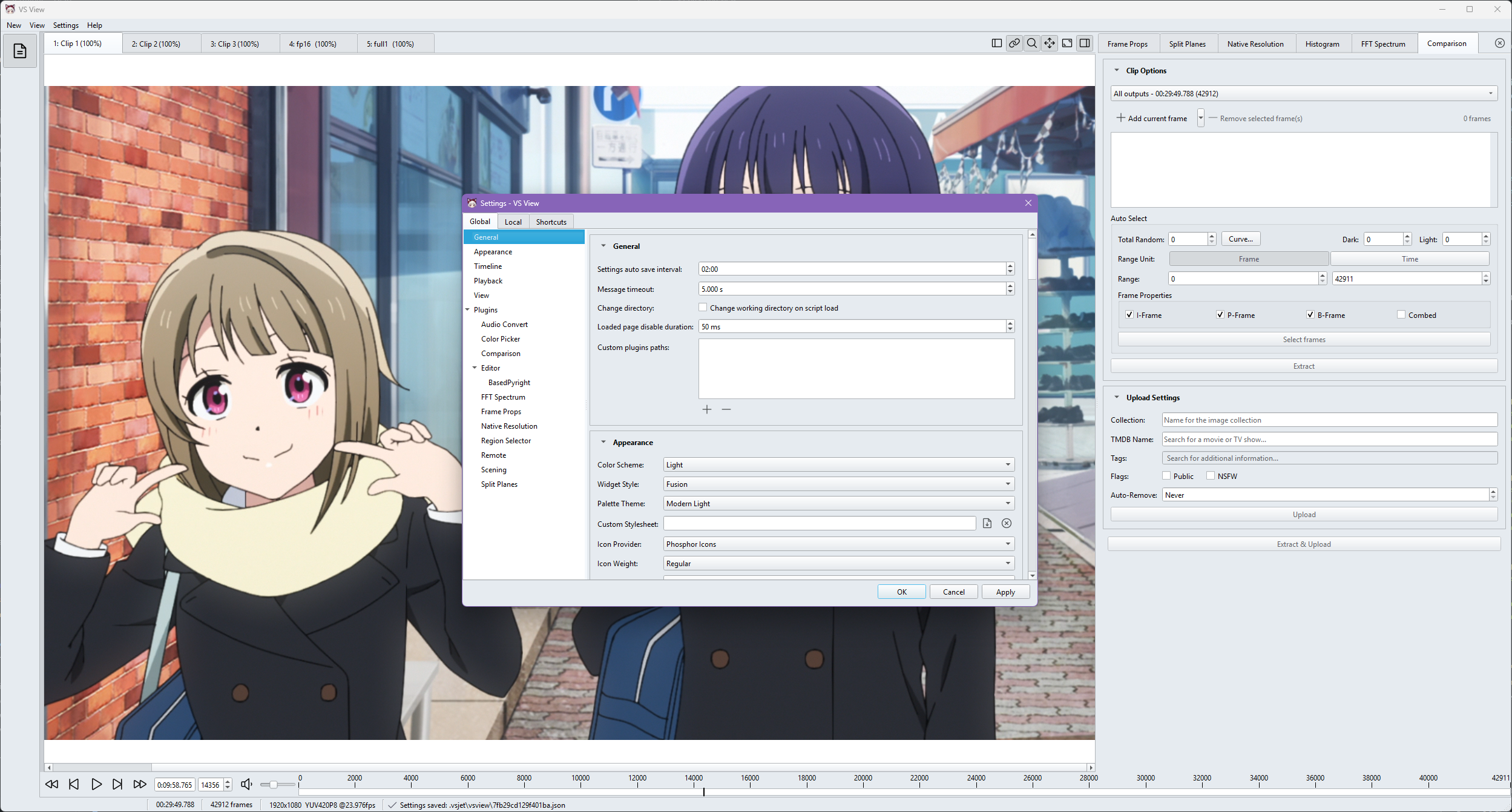
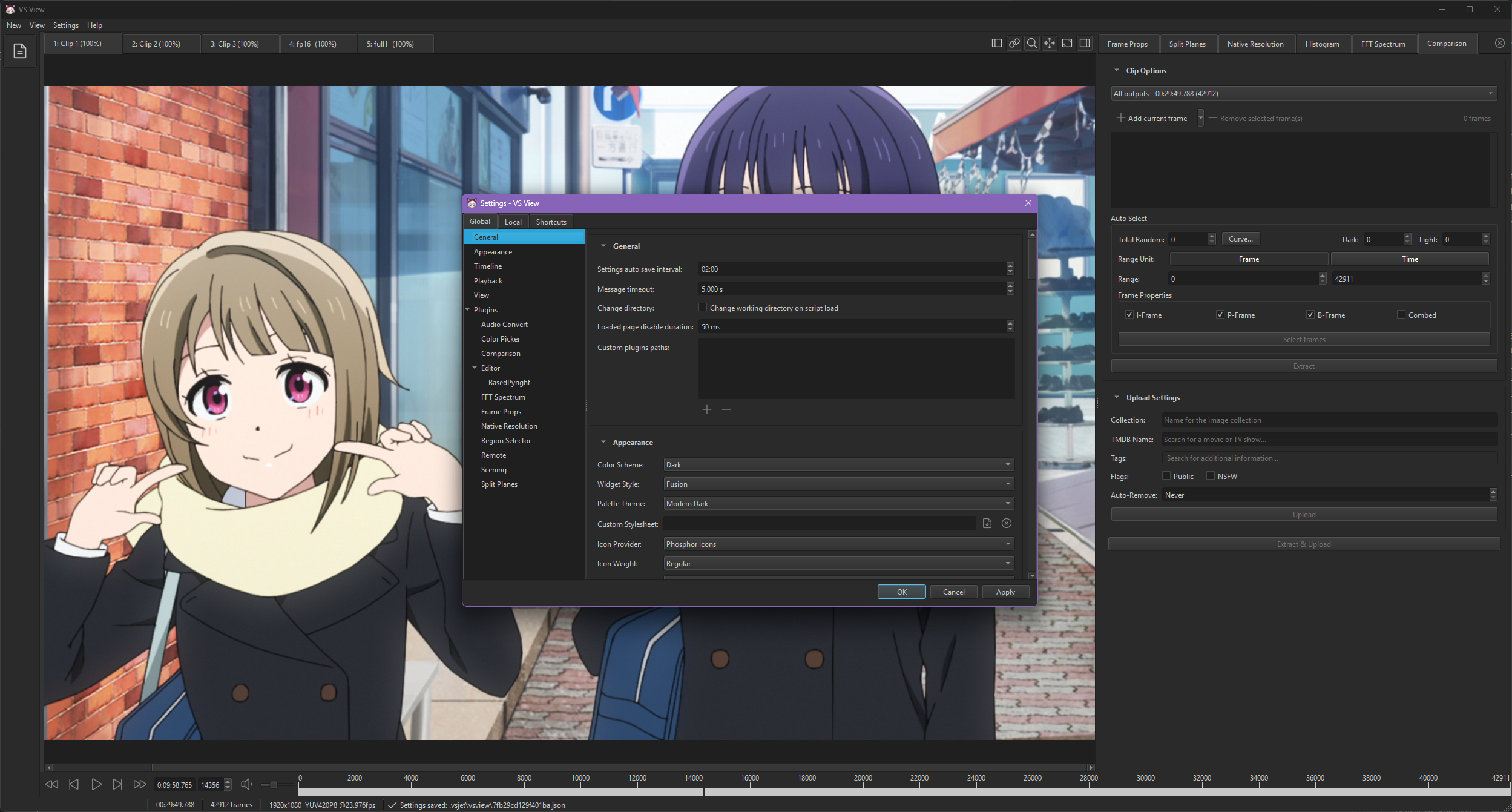
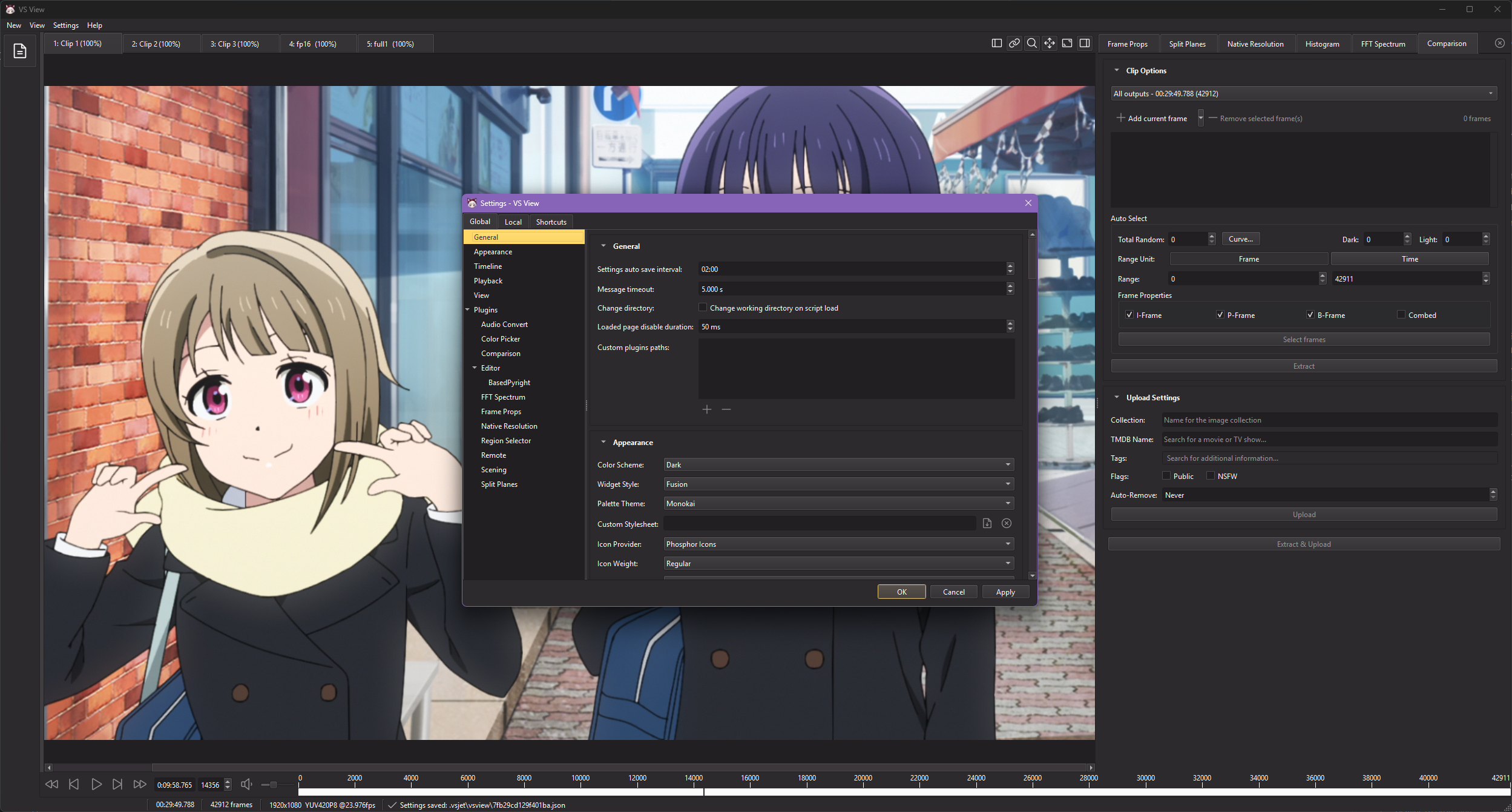
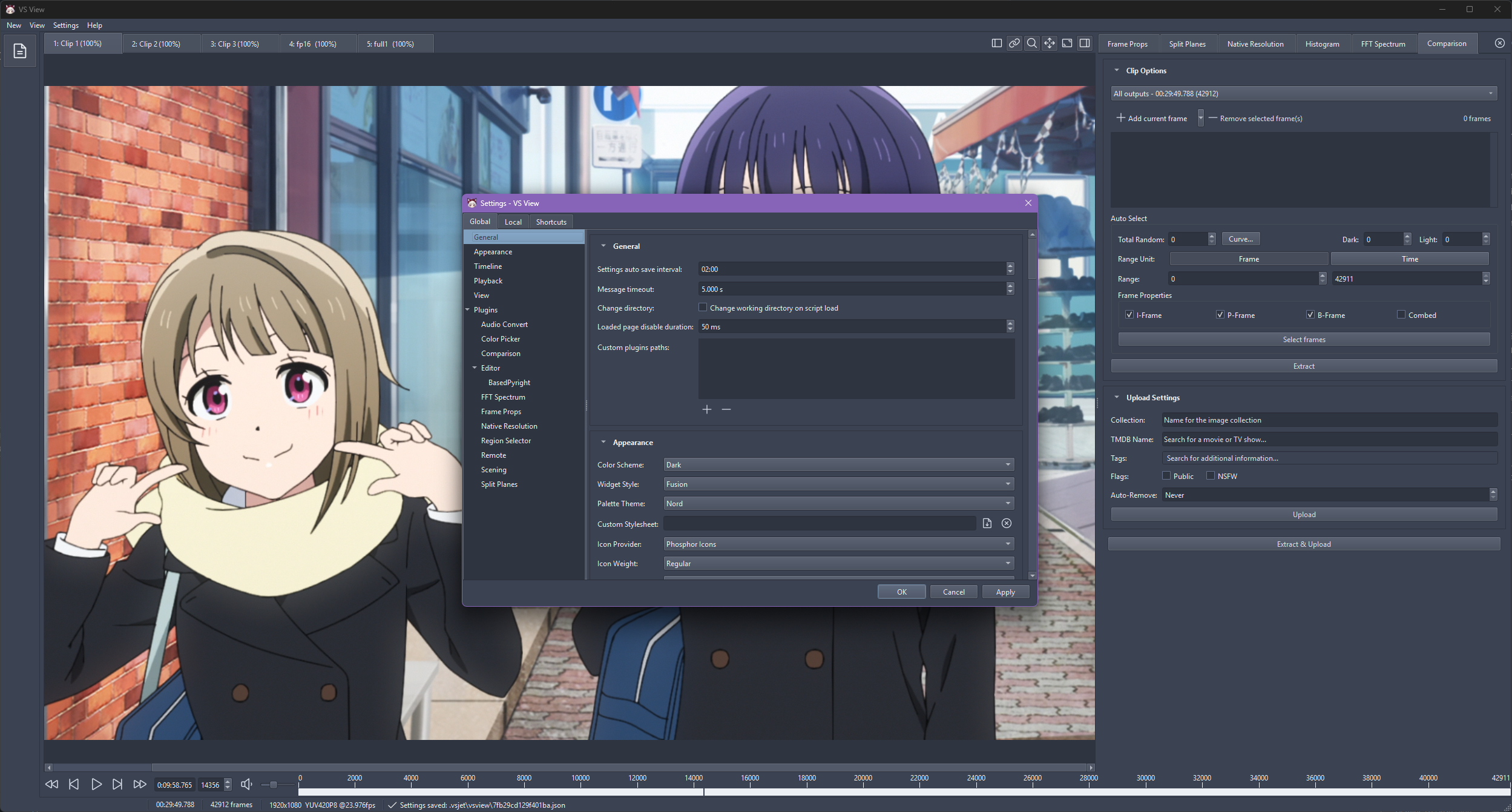
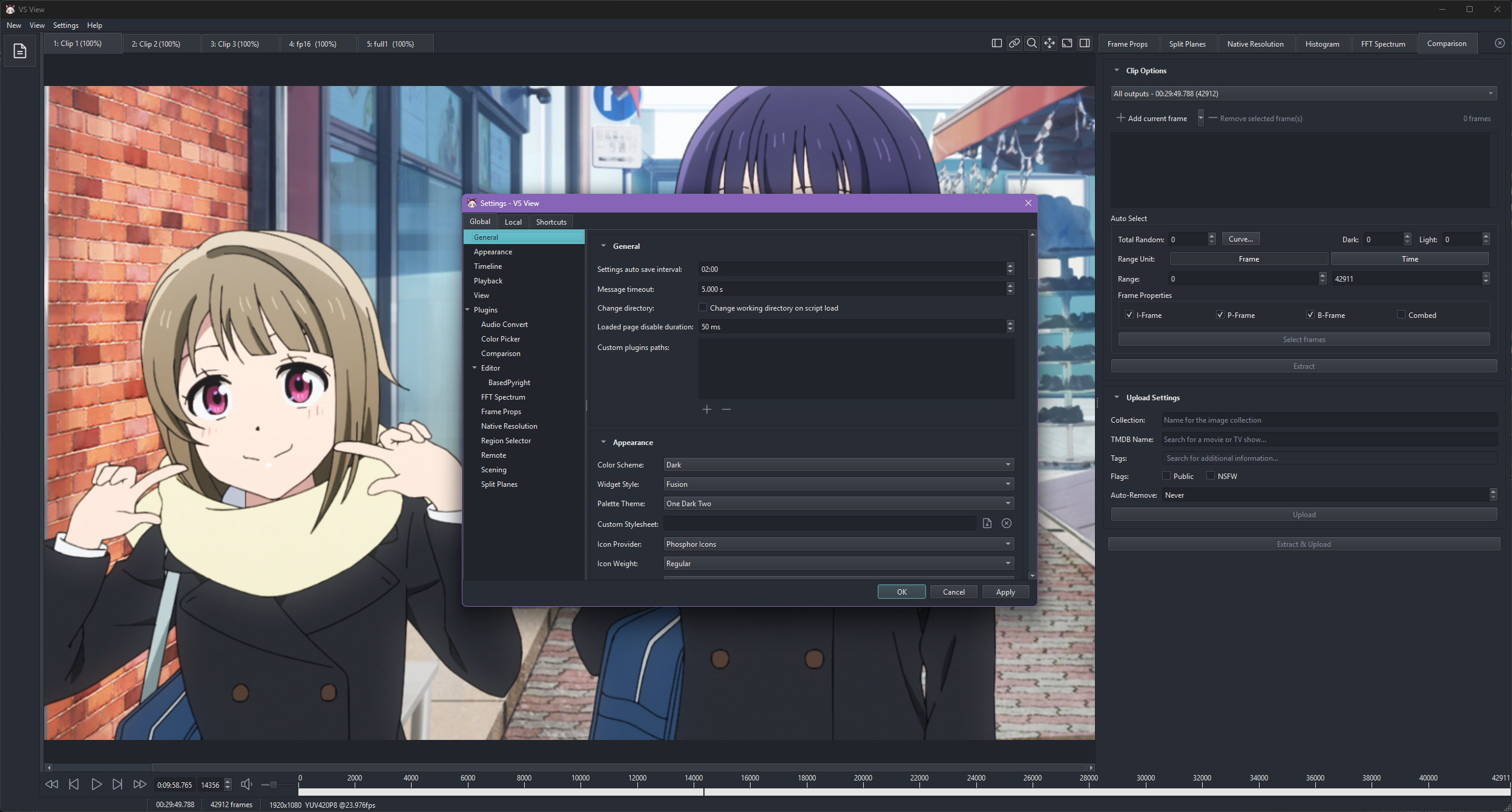
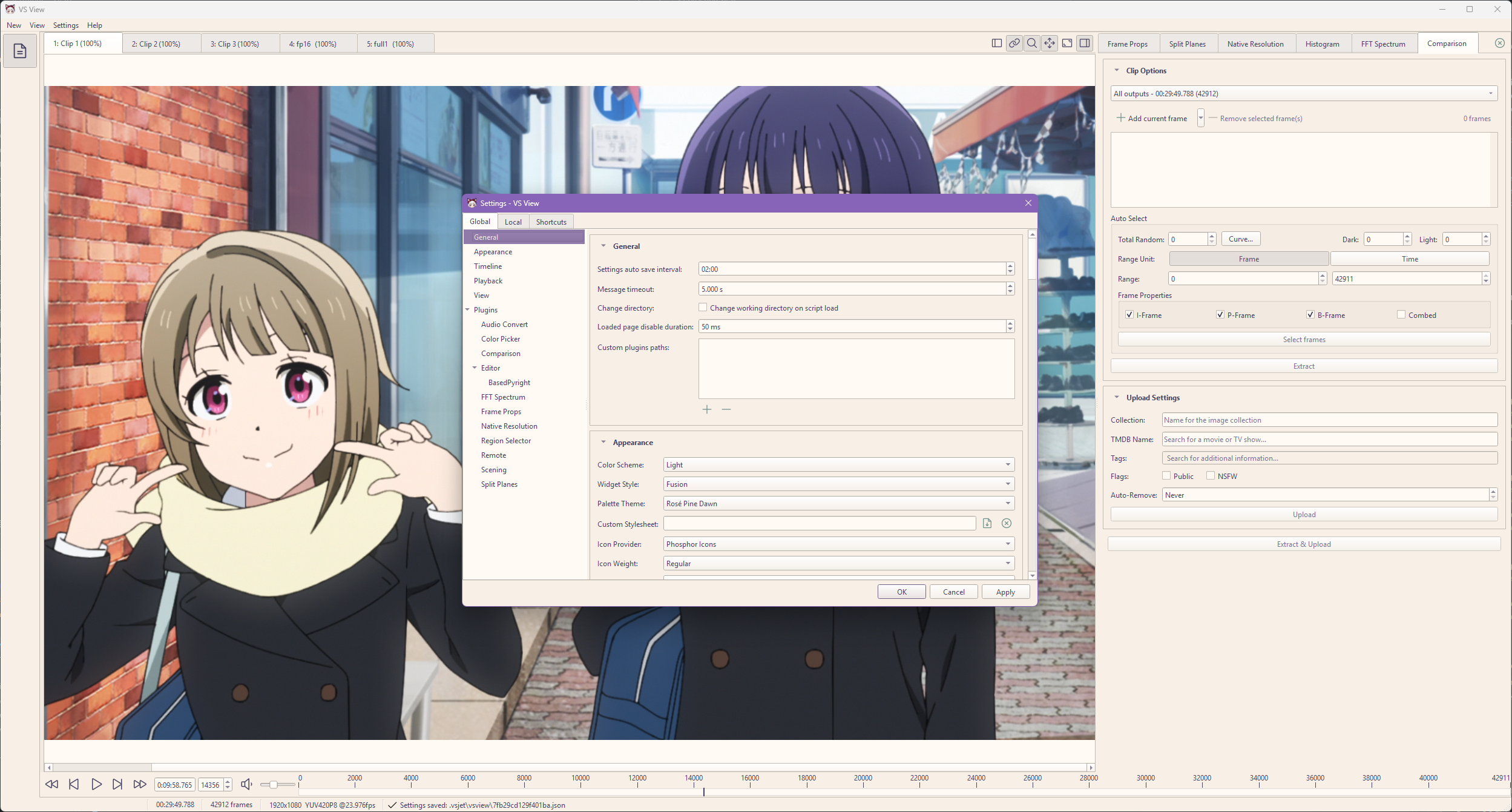
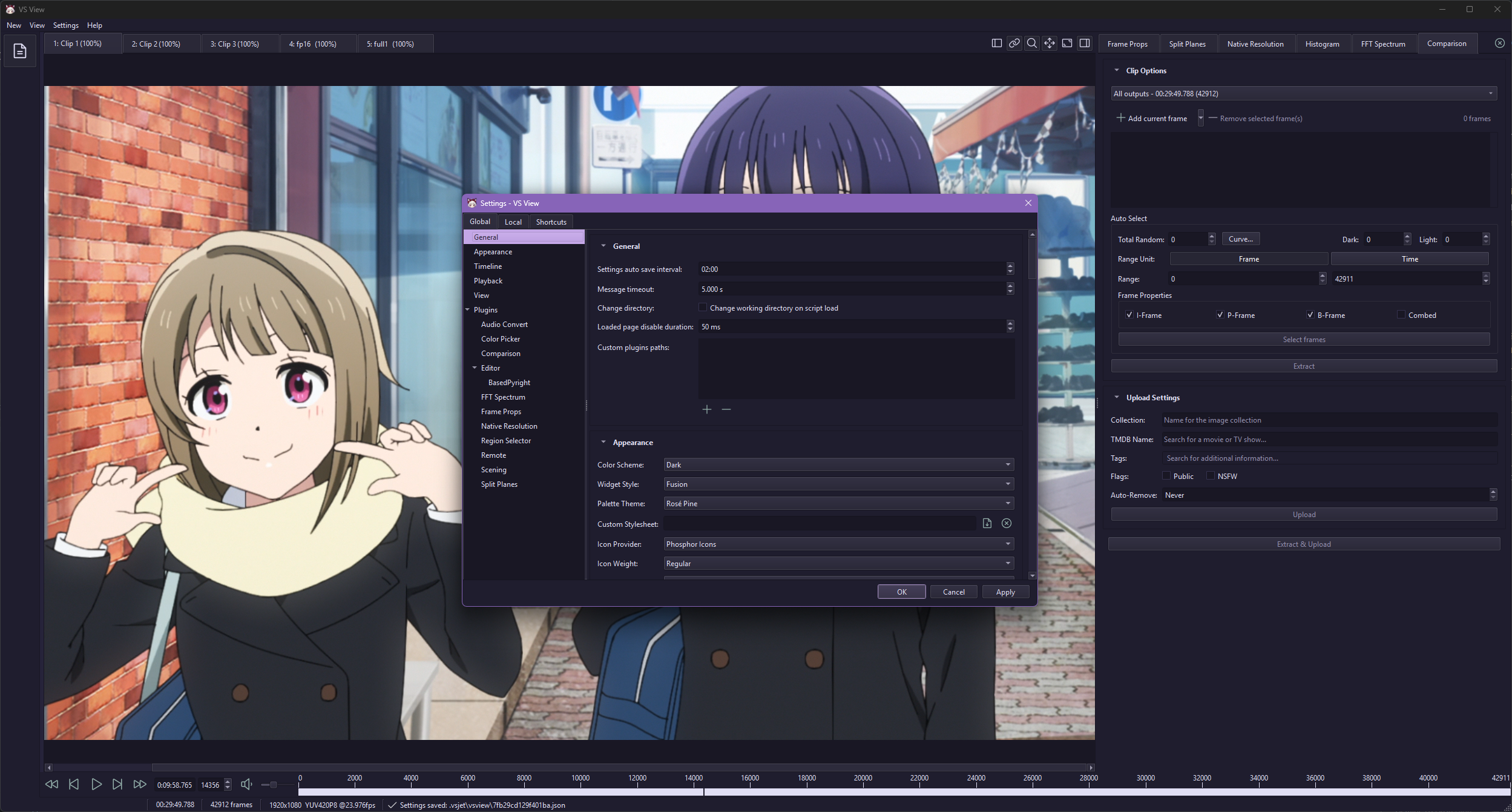
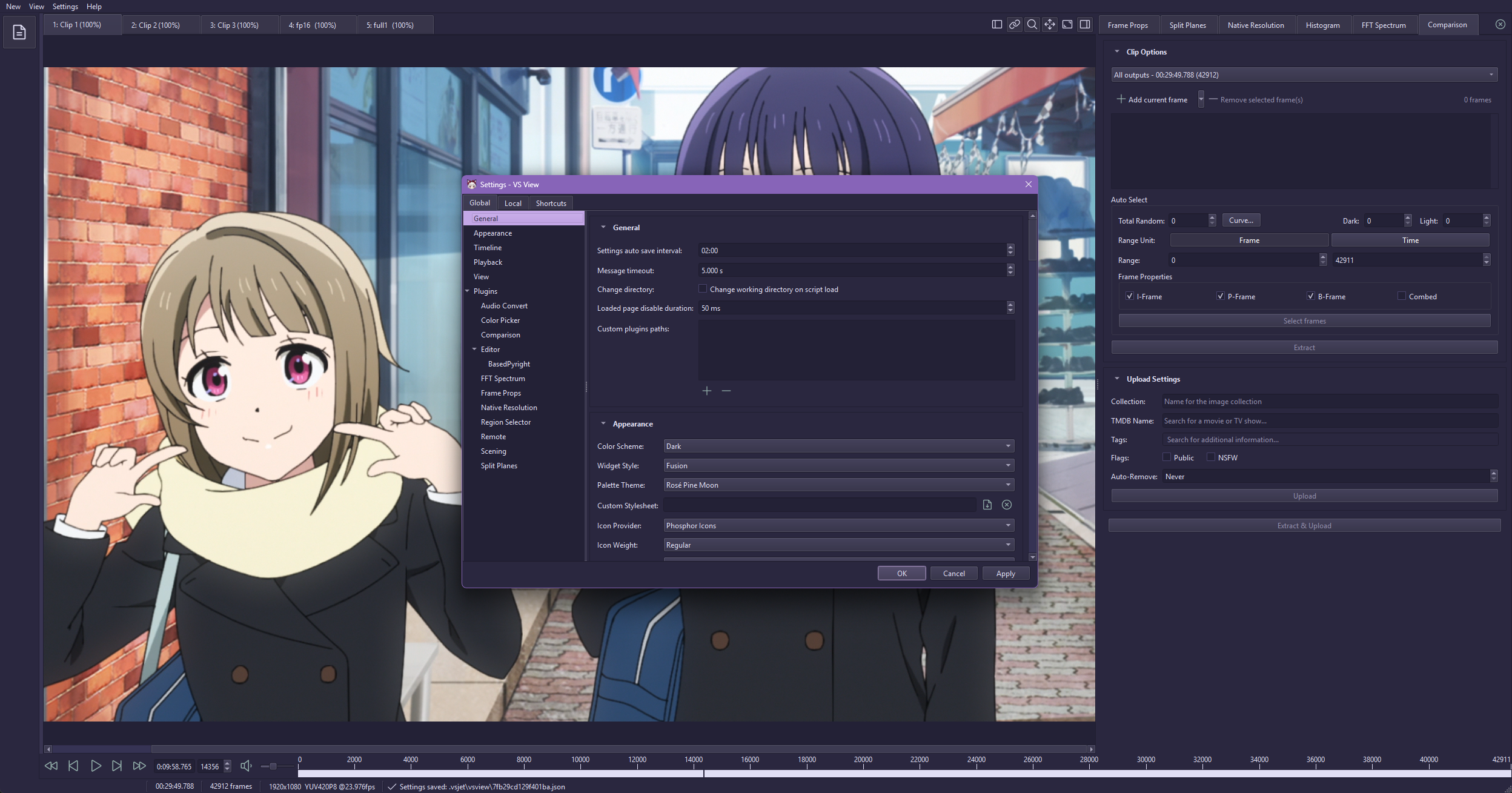
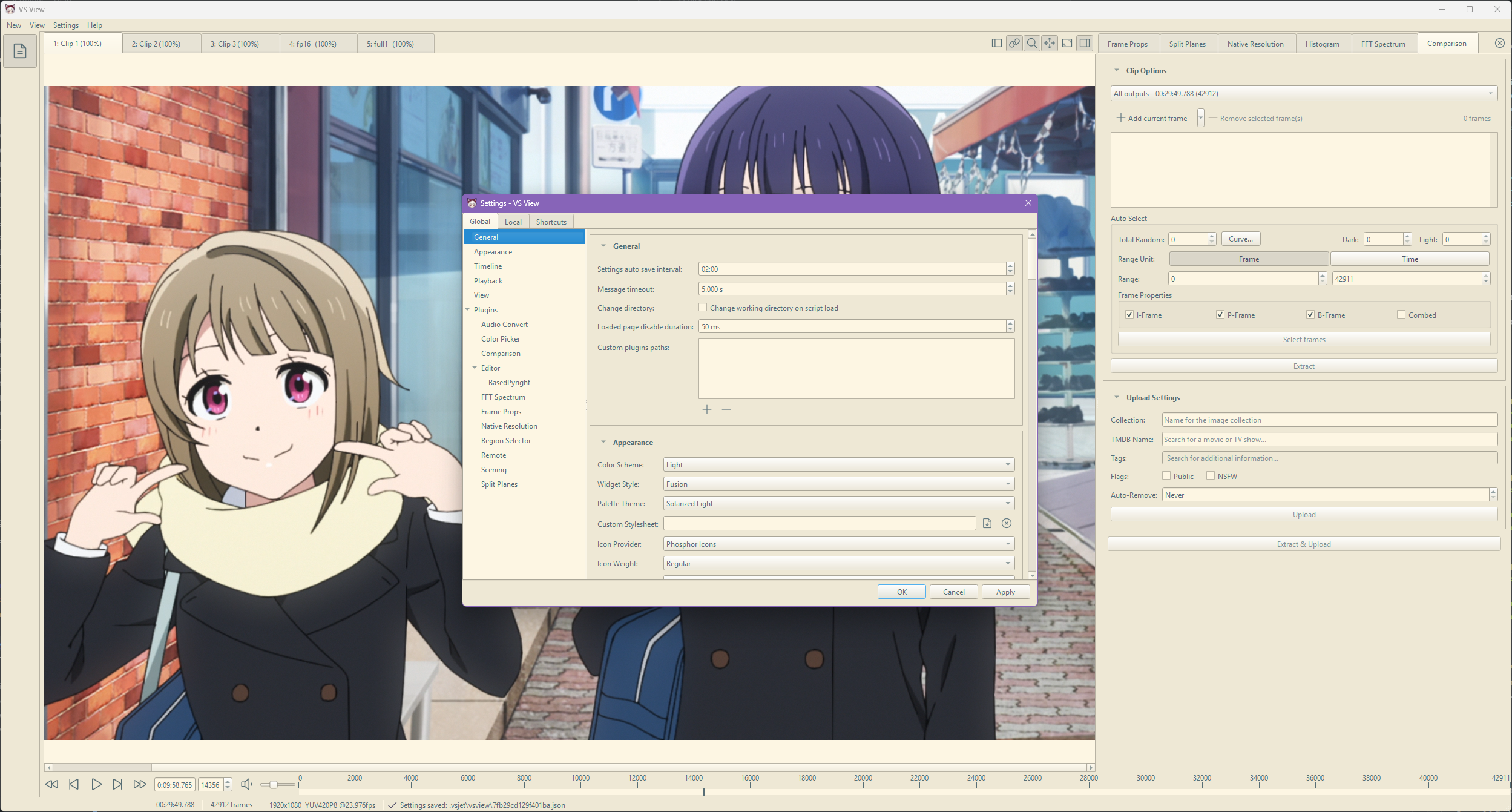
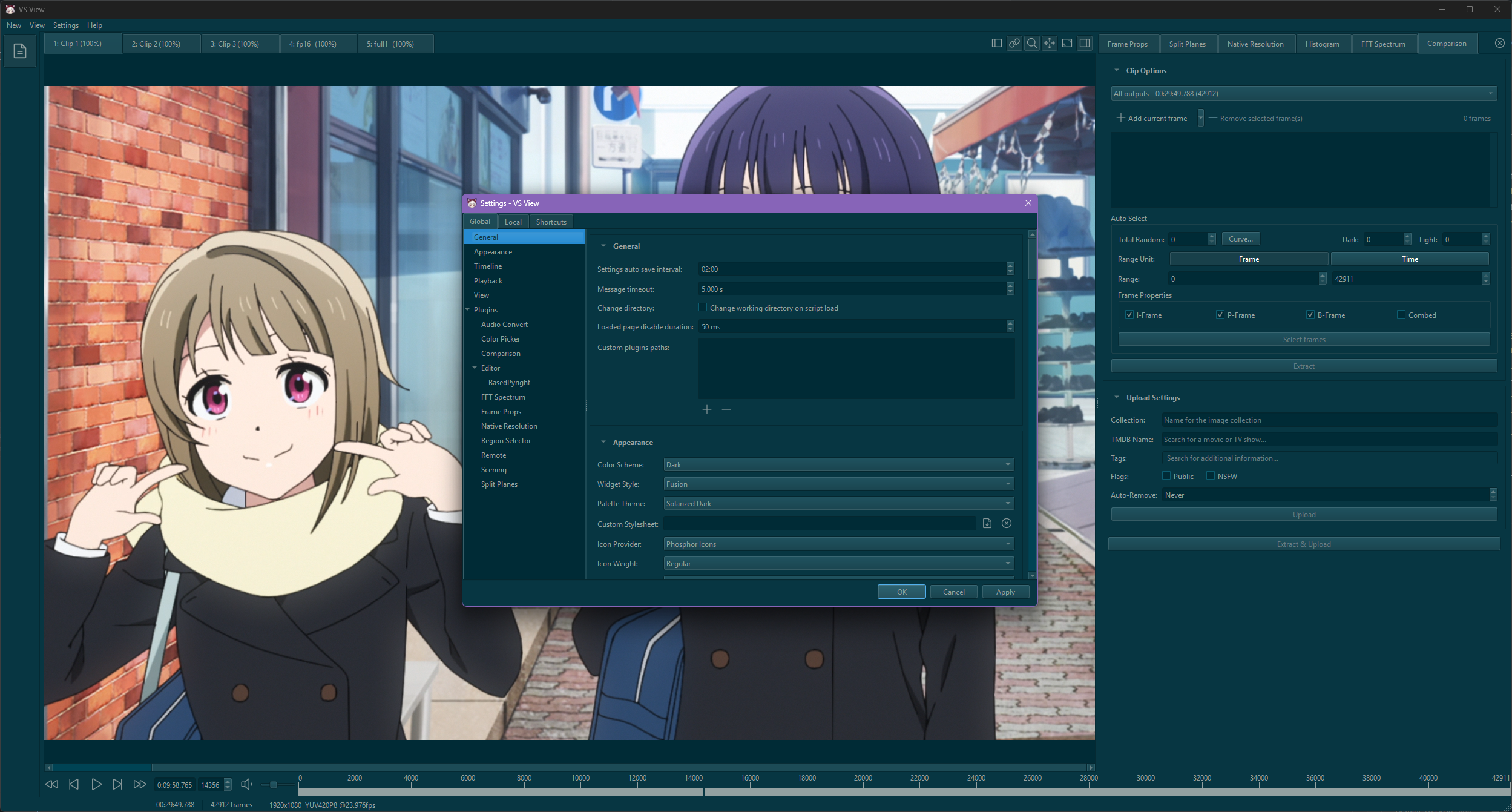
Custom Stylesheet
Applies a custom Qt Style Sheet (.qss) file on top of the active style and palette. Leave empty to disable.
Icons
- Icon Provider: Selects the icon set.
- Icon Weight: Sets the stroke weight. Available weights depend on the selected provider.
Custom Themes
Custom JSON themes can be placed in the themes directory inside the settings folder:
Run vsview config path to print your active settings directory.
Format
{
  "id": "custom_dark",
  "name": "Custom Dark",
  "scheme": "dark",
  "palette": {
    "base": "#1e1e2e",
    "mantle": "#181825",
    "crust": "#11111b",
    "surface0": "#313244",
    "surface1": "#45475a",
    "surface2": "#585b70",
    "overlay0": "#6c7086",
    "overlay1": "#7f849c",
    "overlay2": "#9399b2",
    "text": "#cdd6f4",
    "primary": "#89b4fa",
    "secondary": "#f5c2e7",
    "tertiary": "#94e2d5",
    "info": "#89dceb",
    "success": "#a6e3a1",
    "warning": "#f9e2af",
    "danger": "#f38ba8"
  }
}
Themes in this directory are loaded automatically on launch.