Editor Workspace
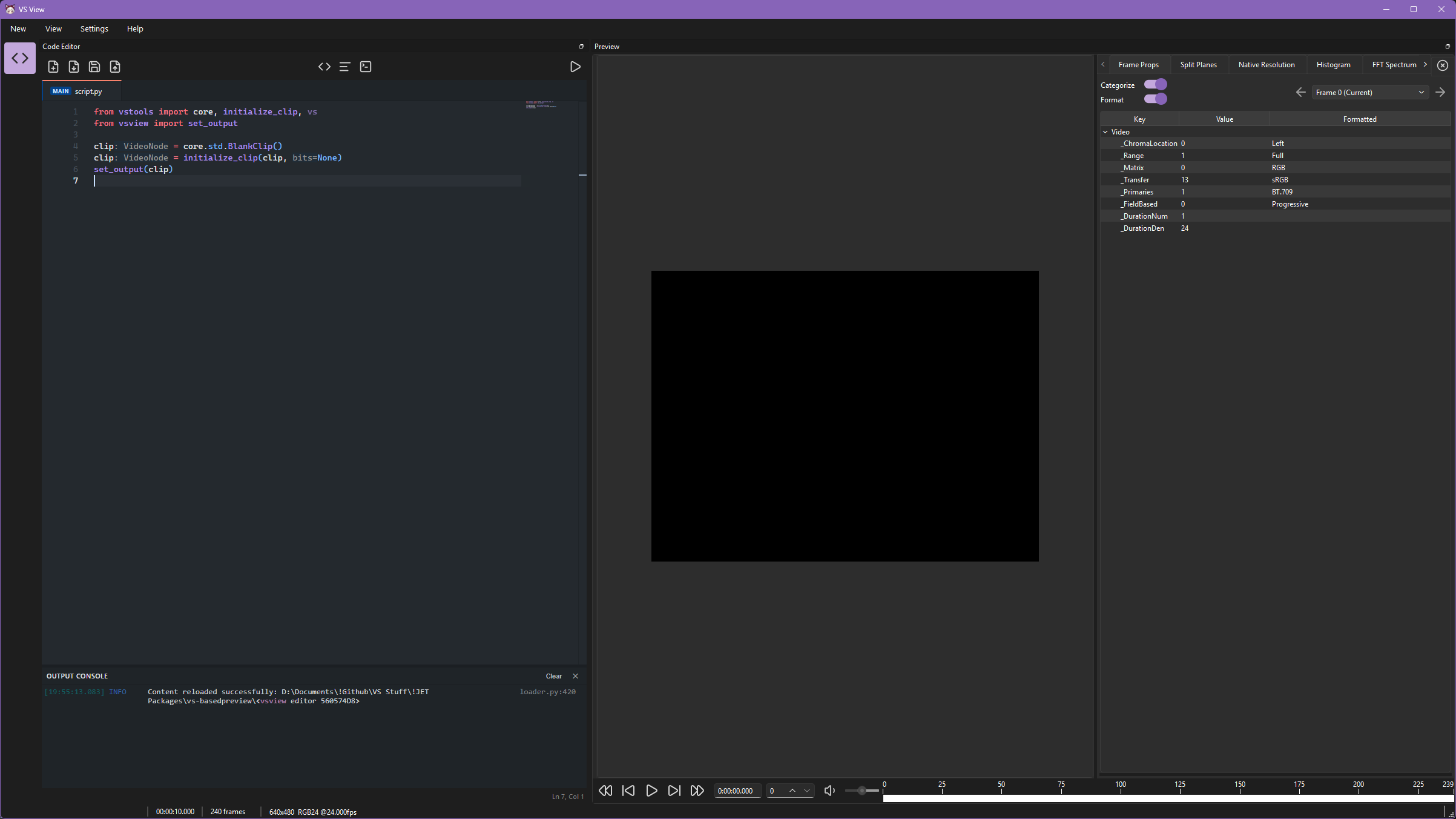
The Editor Workspace embeds a Monaco-based code editor and integrated Python environment inside VSView.
It provides script editing, live language server diagnostics, multi-tab file management, and an execution output console alongside the video frame preview.
Refer to the Workspaces Overview for general workspace layout and viewer controls.
Installation
Workspace Layout
The Editor workspace consists of two main dockable panels:
- Code Editor Panel (Left): Contains the toolbar, multi-tab bar, Monaco editor viewport, output console, and status bar.
- Preview Stack Panel (Right): Displays rendered video frames and playback controls. Refer to the Workspaces Overview for general workspace layout and viewer controls.
Toolbar Controls
The editor toolbar provides access to script management, formatting, and execution controls:
| Icon | Control | Default Shortcut | Action |
|---|---|---|---|
| New Script | Ctrl+N | Opens a new untitled script tab (untitled_<id>.py). |
|
| Open Script | Ctrl+O | Displays a file picker to open an existing script. | |
| Save Script | Ctrl+S | Saves the active tab buffer to disk. | |
| Save Script As... | Ctrl+Shift+S | Displays a file picker to save the active buffer to a new path. | |
| Format Code | Shift+Alt+F | Formats the active tab code using Ruff. | |
| Toggle Word Wrap | Alt+Z | Toggles soft line wrapping in the editor. | |
| Toggle Console | Ctrl+` | Shows or hides the integrated output console. | |
| Run Script | F5 | Reloads and executes the designated main script in the preview engine. |
Interface Components
Multi-Tab System
The tab bar manages open script buffers.
The execution target is identified by a MAIN badge on the tab. Clicking Run Script (F5) executes the MAIN script regardless of which tab is currently visible.
Right-click any tab and select Set as Main Script to designate it as the execution target.
Monaco Editor Viewport
The code viewport is powered by Monaco Editor, the same code editor that powers VS Code.
- Autocompletion & IntelliSense: Trigger code suggestions with Ctrl+Space.
- Hover & Diagnostics: Hovering over symbols displays docstrings and type signatures. Syntax and type errors are underlined inline.
- Peek Definition: Peek definitions with Ctrl+Left Button.
- Color Themes: Customize the editor appearance with built-in Light, Dark, High Contrast, Visual Studio, and GitHub color themes.
Output Console
The integrated xterm.js terminal panel displays execution logs.
Status Bar
The status bar at the bottom left of the editor dock displays the current cursor line and column position (Ln X, Col Y).
Language Server (Basedpyright)
The workspace runs an embedded instance of the Basedpyright Language Server in the background.
VapourSynth stubs are automatically generated when the workspace starts. You can also force them to be regenerated by opening the Monaco Show All Commands palette with F1 or Ctrl+Shift+P, and selecting "VapourSynth: Generate Stubs".
Like any other plugin, the language server can be configured through the Settings menu.
Configuration Settings
The Editor workspace settings can be configured in VSView settings under the Plugin - Editor plugin section.